MFT Enterprise Processing Rules
MFT Enterprise Processing Rules enable you to automate specific actions on files that were uploaded or downloaded by external or internal users to specific virtual folders. These actions are based on specific conditions that you define for each rule, such as the filename, size, or user. After an external or internal user uploads or before a user downloads a file from the Hub, it is processed based on defined rules such as moving the file to another location and sending alert email messages.
The following is a list of actions that you can automate after a file is uploaded or downloaded by external or internal users:
-
After a file is uploaded to the platform by an external user, execute a script that scans each downloaded file with an antivirus program and then deletes any infected file.
-
After a file is pushed to the platform by internal user MyUser, run a job that transfers a file that arrives from the Hub to a specific server.
-
After a file is downloaded by external user MyPartner, send an email notification with a customized message.
-
After a PDF file is pulled by an internal user, move it to another location in the file system.
You can add a rule based on the following rule types:
-
Upload File by External User: The rule is processed after the file is uploaded by an external user.
-
Download File by External User: The rule is processed before or after the file is downloaded by an external user.
-
Push File by Internal User: The rule is processed after the file is uploaded by an internal user.
-
Pull File by Internal User: The rule is processed before or after the file is downloaded by an internal user.
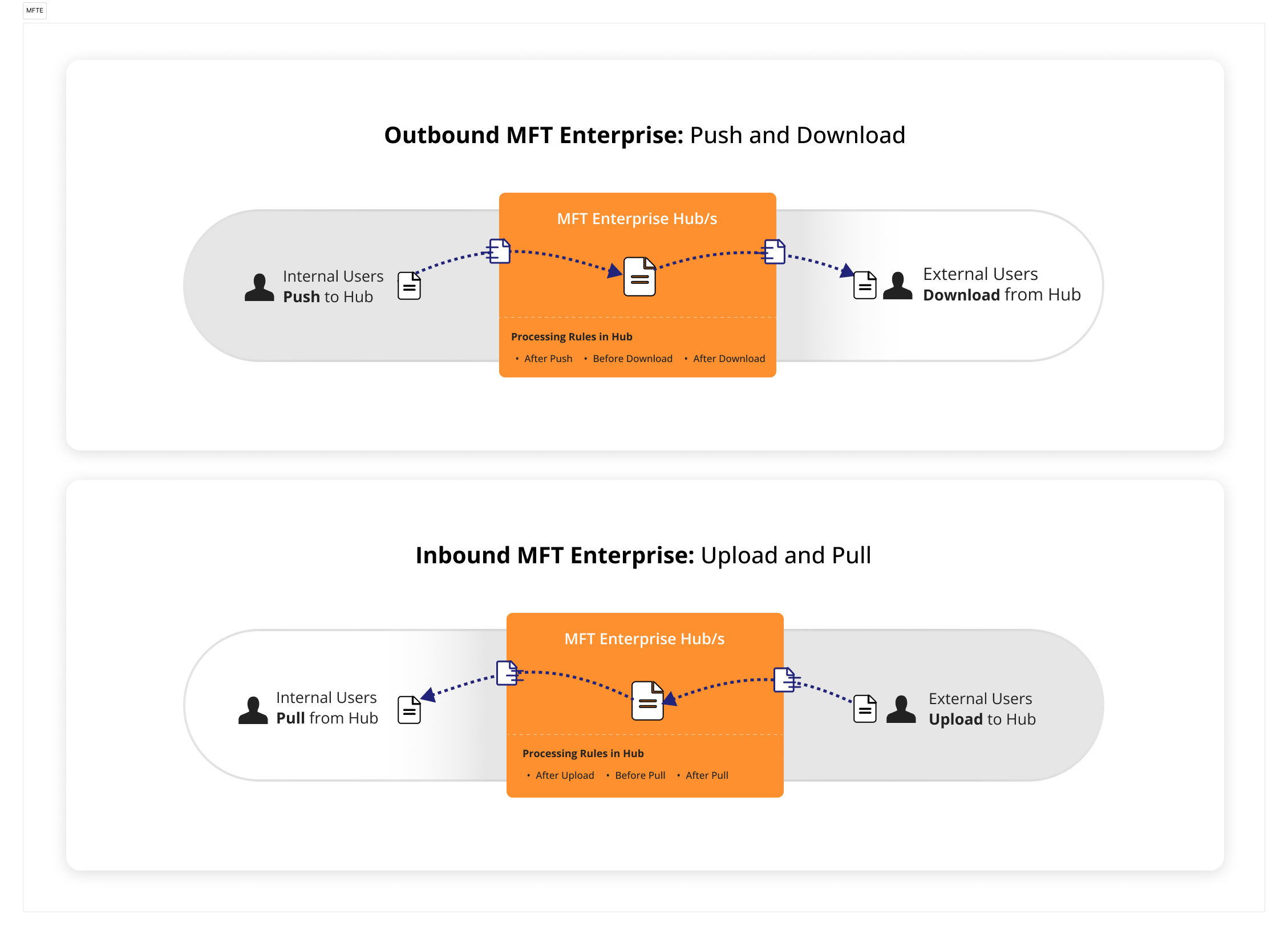
The following diagram shows how MFT Enterprise handles processing rules for uploaded or downloaded files by internal or external users.
Creating an MFT Enterprise Processing Rule
This procedure describes how to create an MFT Enterprise processing rule.
Before You Begin
-
Ensure that you have completed all the setup procedures, as described in Setting Up the Control-M MFT Enterprise Environment.
Begin
-
From the Managed File Transfer domain, select MFT Enterprise Configuration.
-
Log in with the same username and password that you use to log in to Control-M Web.
The MFT Enterprise window appears.
-
Select the Rules tab, click Add Rule, and then select one of the following rules:
-
Upload File by External User
-
Download File by External User
-
Push File by Internal User
-
Pull File by Internal User
-
-
Do the following:
-
In the Name field, type the name of the rule.
Valid Characters: A–Z, a–z, 0–9, whitespace, ! # ( ) ` . - " _ @
-
In the Description field, define the rule purpose.
-
From the Priority drop-down list, select the rule priority level.
If you select a higher priority level, this rule is processed before other matching rules.
-
1: Highest
-
10: Lowest
-
-
-
Click the Conditions tab, click Add Condition, and then select one of the following:
-
By file name
-
By file size
-
By user/company
-
By folder
-
-
Apply the condition criteria, as described in Control-M MFT Enterprise Rule Conditions.
-
Click the Actions tab, click Add Action, and then select one of the following:
-
Notify by email.
-
File operations.
-
Run folder/job.
-
Add event.
-
Run command/script.
-
-
Apply the action criteria, as described in Control-M MFT Enterprise Rule Actions.
-
Click Save.
Control-M MFT Enterprise Rule Conditions
The following table describes the Control-M MFT Enterprise conditions that you can apply for each rule.
|
Parameter |
Description |
|---|---|
|
If file name matches a pattern |
Determines whether the file matches a specific filename, a regular expression, or if it is case-sensitive. AAA.txt,B*.pdf,C???.csv
|
|
If file matches a certain size |
Determines the minimum and maximum file size in bytes, KB, MB, or GB. |
|
If file sent by specific user/groups or company |
Determines which users or companies sent the file. |
|
If file arrives in specific virtual folder |
Determines the virtual directories and subdirectories where external and internal users can upload or download files.
|
Control-M MFT Enterprise Rule Actions
The following table describes the Control-M MFT Enterprise actions that you can apply for each rule and determine whether to cancel processing all rules, cancel processing the current rule, delete the file, or continue processing rules if the action fails.
You can also use variables for each parameter, as described in Action Rule Variables.
|
Parameter |
Description |
|---|---|
|
Notify by email |
Defines the email address, subject, and message of the notification. |
|
File operations |
Determines whether to move or copy the file to a relative or absolute path and whether to rename the destination file or delete it. If you use Action Rule Variables and you want the variables to update the filename and path of the copied file, select Adjust $$ variables to the copied file. A rule action copies a file from /folder1/file1.txt to /p/myfiles/file2.txt and you checked the Adjust $$ variables to the copied file option, the following occurs:
Future actions that use $$FILE_PATH$$ and $$FILE_NAME$$ are performed on the file copy, and not on the original file that was uploaded. |
|
Run folder/job |
Determines which folder and jobs to run with run options and variables. For more information on these parameters, see Run Attributes. |
|
Add event |
Determines the event name and event date to add, which triggers jobs that are waiting for this event to start executing. |
|
Run command script |
Defines the executable command or script to run with successful return codes. Do not change the filename (by renaming or moving) if one of the other matching rules is expected to use this file. |
|
If Action Fails |
Determines how to handle subsequent actions and rules when the current action fails, as follows:
|
|
Delete File |
Determines whether to delete the file if current rule action fails. |
Action Rule Variables
The following table describes the variables that you can use as values for actions in a rule.
|
Variable |
Description |
|---|---|
|
$$FILE_PATH$$ |
Defines the path of the file. \b2bhome\Folder1\incoming\aaa.txt |
|
$$FILE_ABS_PATH$$ |
Defines the absolute path of the file. C:\Agent\cm\AFT\ftshome\b2bhome\Folder1\incoming\aaa.txt |
|
$$FILE_DIR$$ |
Defines the parent directory of the file. \b2bhome\Folder1\incoming |
|
$$FILE_ABS_DIR$$ |
Defines the absolute parent directory path of the file. C:\Agent\cm\AFT\ftshome\b2bhome\Folder1\incoming |
|
$$FILE_NAME$$ |
Defines the name of the file. aaa.txt |
|
$$FILE_NAME_NO_EXT$$ |
Defines the name of the file without an extension |
|
$$FILE_EXT$$ |
Determines the file extension (including the . character). |
|
$$FILE_EXT_NO_DOT$$ |
Determines the file extension (without the . character). |
|
$$FILE_DATE$$ |
Defines the date of the file in YYYYMMDD format in UTC time. 20180325 |
|
$$FILE_DATE_LOCAL$$ |
Defines the date of the file in YYYYMMDD format in the local time of the Agent host. |
|
$$FILE_TIME$$ |
Defines the time of the file in HHmmSS format in UTC time. 170459 |
|
$$FILE_TIME_LOCAL$$ |
Defines the time of the file in HHmmSS format in the local time of the Agent host. |
|
$$FILE_SIZE$$ |
Determines the size of the file in bytes. |
|
$$USER$$ |
Determines which users uploaded the file. |
|
$$COMPANY$$ |
Determines which company uploaded the file. |
|
$$VIRTUAL_FOLDER$$ |
Defines the virtual folder name. |
|
$$EMAIL$$ |
Defines the user email address. |
|
$$PHONE_NUMBER$$ |
Defines the user phone number. 704123456 |
|
$$SUB_DIR_PATH$$ |
Defines the destination subdirectory path of the file. Sub1/Sub2 |
|
$$STAGING_FILE_NAME$$ |
Defines the temporary name of the file in the staging area, before a download operation starts. You can use this variable to perform operations on the temporary file, before the user downloads it. |
|
$$STAGING_FILE_PATH$$ |
Defines the temporary file path in the staging area, before a download operation starts. You can use this variable to perform operations on the temporary file, before the user downloads it. |
Processing Rule Scenarios
The following table describes different processing rule definitions, scenarios, and results.
|
Rule Definitions |
Scenario |
Result |
|---|---|---|
|
The following rules are defined as follows:
|
User_ABC uploads a file to the Finance folder. This satisfies the conditions for Rule_1 and Rule_2. |
Rule_1 runs first, followed by Rule_2. |
|
If any action fails in the following rules, MFT aborts all subsequent actions in that rule and does not process any subsequent rules:
|
User_ABC uploads a file to the Finance folder. However, the run Calculate_Work_Hours.exe script action fails. |
MFT does not send the email notification in Rule_1 and does not process Rule_2. |
|
If any action fails in the following rules, MFT skips all subsequent actions in that rule and processes all subsequent rules:
|
User_ABC uploads a file to the Finance folder. However, the run Calculate_Work_Hours.exe script action fails. |
MFT does not send the email notification in Rule_1, but does process Rule_2. |
|
If any action fails in the following rules, MFT continues to perform all the remaining actions in that rule and processes all subsequent rules:
|
User_ABC uploads a file to the Finance folder. However, the run Calculate_Work_Hours.exe script action fails. |
MFT sends the email notification in Rule_1 and then processes Rule_2. |
 YouTube
 Facebook
 LinkedIn