Azure Key Vault Integration
Control-M supports retrieval of secrets (such as passwords, access keys, or security keys) from Azure Key Vaults.
Control-M communicates with the Azure Key Vault via a REST call, as shown in the following diagram:
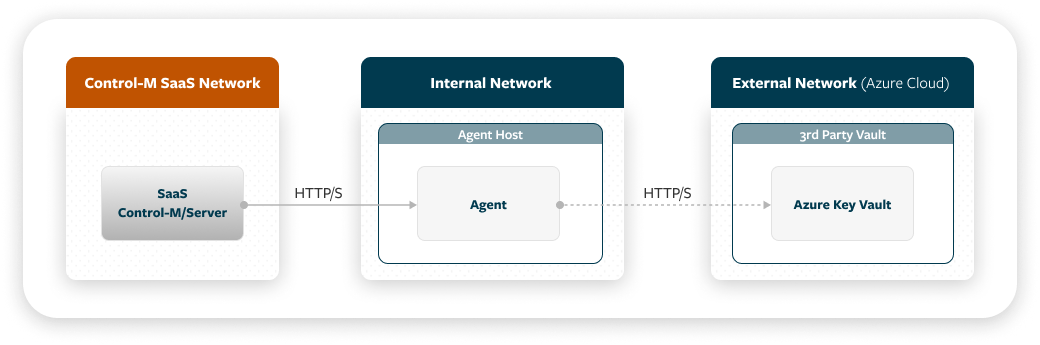
Control-M communication with the Azure Key Vault supports a variety of authentication methods.
Setting Up an Azure Key Vault Integration
This procedure describes how to set up an Azure Key Vault integration, which enables you to configure vault integration parameters and select the vault integrations that appear in
Before You Begin
-
Verify that you have an Azure subscription for use of Azure Key Vault.
-
Ensure that you have the following vault configuration items:
-
Details of vault authentication.
-
Proxy details, if outbound access goes through a proxy.
-
-
If you want to use your own server certificate, create a keystore in the <AGENT_HOME>/ctm/cm/vault_cfg/ directory and import a server certificate for it, as described in Setting Up Your Own Server Certificate.
Take note of truststore details (name, password, and type). You will need to configure these details during setup, along with a parameter to disable trust of all server certificates (azure.rest.disable.trustall=true).
Begin
-
Open a command prompt window where your Agent is installed.
-
Run the Vault Configuration (vault-cfg) utility and configure Control-M integration with the vault, as follows:
You can, alternatively, use the Vault CLI (vault-cli) utility, for backward compatibility with previous versions of Control-M.
-
Navigate to the directory that contains the Vault Configuration utility:
<AGENT_HOME>/ctm/cm/vault_cfg/
-
Configure vault integration parameters using one of the following methods:
-
Run an interactive wizard that prompts you for the values of all relevant parameters (taking into account the dependencies between parameters). This method is especially useful for an initial setup of vault integration.
Run the wizard using one of the following commands:
-
Linux: ./vault-cfg.sh config init
-
Windows: vault-cfg.cmd config init
After you provide parameter values, the wizard enables you to choose whether to apply all configuration changes immediately or to print a series of update commands for later use (for example, by an automation script).
-
-
Run update commands to configure values of specific parameters, one by one. This method is especially useful if you want to modify an existing vault integration setup. For each parameter that you want to configure, run one of the following commands:
-
Linux: ./vault-cfg.sh config update -p=<parameter> -v=<value>
-
Windows: vault-cfg.cmd config update -p=<parameter> -v=<value>
-
For descriptions of the available parameters, see Azure Key Vault Integration Parameters.
-
After you configure the vault integration parameters, you can display the current parameter values by running one of the following commands:
-
Linux: ./vault-cfg.sh config display
-
Windows: vault-cfg.cmd config display
-
-
If you want to delete your settings and disable the vault integration, use one of the following commands:
-
Linux: ./vault-cfg.sh config delete
-
Windows: vault-cfg.cmd config delete
-
-
-
Test the connection to your vault by running one of the following commands:
-
Linux: ./vault-cfg.sh test -f=<secret_parameters_file>
-
Windows: vault-cfg.cmd test -f=<secret_parameters_file>
In the command, <secret_parameters_file> is the path to a file that defines values for secret parameters in JSON format, as shown in the following example:
Copy{
"VaultName": "finance",
"SecretName": "emuser",
"Application": "oracle"
}These parameters are described in Azure Secret Parameters in Connection Profiles. For a similar JSON format used by Control-M Automation API, see External Vault Secrets.
For a list of possible return codes for the connection test, see Vault Connection Return Codes.
-
-
-
Select the vault integrations to use in centralized connection profiles or Run as User definitions, as described in Configuring System Settings.
By default, vault integrations for all supported vault providers are available when you want to retrieve secrets for password-type fields in connection profiles or in Run as User definitions. Use this procedure to hide any integrations that are not relevant to you from appearing in the user interface.
The selection of vault integrations does not affect the following:
-
Existing connection profile fields or Run as User fields that are already configured to retrieve secrets from vault integrations that are no longer enabled.
-
JSON references to secrets used by Control-M Automation API. For more information, see Secrets in Code.
-
Setting Up Your Own Server Certificate
This procedure describes how to set up your own server certificate, which involves creation of a keystore in the directory that contains the Vault Configuration utility and import of a server certificate for it.
Begin
-
Generate a new keystore in PKCS#12 format using the following command:
keytool -genkeypair -alias <keystoreAlias> -keyalg RSA -keysize 2048 -storetype PKCS12 -keystore /ctm/cm/vault_cfg/<your_keystore>.p12 -storepass <your_password>
-
Import a server certificate using the following command:
keytool -importcert -trustcacerts -alias <serverCertAlias> -file /home/path/<your_server_certificate>.cer -keystore /ctm/cm/vault_cfg/<your_keystore>.p12 -storepass <server_certificate_password>
-
Import a root CA certificate using the following command:
keytool -importcert -trustcacerts -alias <rootCAAlias> -file /home/path/<root_ca_certificate>.cer -keystore /ctm/cm/vault_cfg/<your_keystore>.p12 -storepass <root_ca_certificate_password>
Azure Key Vault Integration Parameters
The following table lists the Azure Key Vault integration parameters that you can configure using the Vault Configuration utility.
-
The parameter names displayed in the table are for use by the update command, and are all in lowercase. The interactive wizard (the init command) displays parameter names in plain English without period characters.
-
Certain parameters are defined separately per application. An application is a logical entity that enables you to set different Azure Key credentials for sub-groups (such as business units or departments).
|
Parameter |
Description |
|---|---|
|
provider.name |
Determines the vault provider and enables vault integration. For integration with an Azure Key Vault, set the value to azure Mandatory. No default. |
|
communication.type |
Defines the type of communication with Azure. For integration with an Azure Key vault, set the value to rest Mandatory. Default (SDK) not compatible with Azure. |
|
azure.<app>.authtype |
Determines one of the following authentication methods to use for a specific application:
|
|
azure.rest.disable.trustall |
Determines whether to disable trust of all server certificates. Set this parameter to true if you want to use your own server certificate, instead of trusting all server certificates. Values:
Default: false |
|
truststore.name |
Defines the truststore name. |
|
truststore.password |
Defines the truststore password. The password is encrypted. |
|
truststore.type |
Defines the truststore type. Values:
Default: PKCS12 |
|
azure.rest.retry.count |
Determines the number of times to retry retrieving the up-to-date password from Azure. Default: 3 |
|
azure.rest.retry.interval.millis |
Determines the retry interval, that is, the number of seconds between attempts to retrieve an up-to-date password from Azure. Default: 1000 |
|
azure.<app>.clientsecret.tenantid |
Defines the tenant ID for Client Secret authentication of a specific application. |
|
azure.<app>.clientsecret.clientid |
Defines the client ID for Client Secret authentication of a specific application. |
|
azure.<app>.clientsecret.clientsecret |
Defines the client secret for authentication of a specific application. The client secret is encrypted. |
|
azure.<app>.clientcertificate.tenantid |
Defines the tenant ID for Client Certificate authentication of a specific application. |
|
azure.<app>.clientcertificate.clientid |
Defines the client ID for Client Certificate authentication of a specific application. |
|
azure.<app>.clientcertificate.pfxname |
Defines the PFX file name for Client Certificate authentication of a specific application. |
|
azure.<app>.clientcertificate.pfxpass |
Defines the PFX file password for Client Certificate authentication of a specific application. The password is encrypted. |
|
azure.<app>.clientcertificate.publickey |
Defines the name of the client certificate's PEM-format public key for authentication of a specific application. |
|
azure.<app>.clientcertificate.privatekey |
Defines the name of the client certificate's PEM-format private key for authentication of a specific application. |
|
proxy.host |
Defines the hostname of the proxy server used to communicate with the Azure Key Vault. Mandatory if communication with Azure goes through a proxy server. |
|
proxy.port |
Determines the number of the designated port on the proxy server used to communicate with the Azure Key Vault. Mandatory if communication with Azure goes through a proxy server. |
|
proxy.user |
Defines the username for optional authentication of communication through the proxy server. |
|
proxy.password |
Defines the password for optional authentication of communication through the proxy server. |
|
proxy.nonProxyHosts |
Defines an optional comma-separated list of specific hosts to exclude from communication through the proxy server. |
Azure Secret Parameters in Connection Profiles
The following table describes the parameters that are used to locate and retrieve passwords or secrets from an Azure Key Vault. These parameters appear when you select the Use External Vault option for any password-type field in the centralized connection profile parameters or Run as User parameters.
|
Parameter |
Description |
|---|---|
|
Vault Name |
Defines the name of the Azure Key Vault. |
|
Secret Name |
Defines the name of the secret in the Azure Key Vault. |
|
Application |
Defines the name of an application, as defined in application-specific Azure Key Vault Integration Parameters. An application is a logical entity that enables you to set different Azure credentials for sub-groups (such as business units or departments). |
 YouTube

 Facebook
 LinkedIn
