Data Assurance
Control-M Data Assurance is an add-on that enables you to monitor and verify the quality and accuracy of your data across multiple data sources, before, during, and after they are extracted, transformed, and loaded through Control-M workflows or plug-ins.
Data Assurance jobs scan data sources for missing, inconsistent, or faulty data according to one or more validation rules. You can define up to 50 individual rules per job, adjust the scope of the data scanned, and determine how the data is measured and checked for accuracy. If one or more validation rules are unmet, which indicates that data is inadequate or incorrect, the Data Assurance job alerts the user and ends Not OK.
The Data Assurance Dashboard enables you to monitor, at a glance, how all Data Assurance jobs have performed and investigate specific current and past job executions in detail, as described in Data Assurance Dashboard.
Data Assurance consists of the following entities:
-
Data Source: A database or directory of CSV or text files. Data Assurance supports PostgreSQL, Snowflake, MSSQL, Oracle, and MySQL databases.
-
Dataset: A database table or filtered directory of CSV or text files. Each data source contains one or more datasets.
-
Validation Scope: A user-defined range of values in the dataset that the Data Assurance job scans, such as the Customer_Full_Name column in the Customers dataset of an MSSQL database.
-
Validation Rule: A user-defined rule that examines a specific data attribute in the dataset for completeness or accuracy. Validation rules are based on the user-defined scope of the dataset that the Data Assurance job scans, the metric that you apply to that data, and the user-defined threshold value the metric measurement must meet to validate the data. If the rule is unmet, the data is considered faulty. For more information, see Creating Validation Rules.
-
Metric: A predefined standard of measurement, such as minimum file size, standard deviation, or average, that a Data Assurance rule employs to measure the data in the validation scope. Data Assurance provides a list of predefined metrics that are specific to the type and scope of data in the required dataset, as described in Metric Attributes.
You can also define your own metrics for text file data sources and integrate them into Data Assurance, as described in User-Defined Metrics.
-
Alert: A notification that appears in the Dashboard when a validation rule is unmet and a Data Assurance job ends Not OK. This indicates that one or more inconsistencies or missing values are present in your data.
After you define your Data Assurance jobs with one or more validation rules and corresponding alert levels, you can build these jobs into existing workflows that must have complete and correct data to perform as required. If a predecessor Data Assurance job finds no faulty data, indicating that all rules are met, no alert is sent, the job ends OK, and successor jobs in the workflow can execute with quality-assured data. If the Data Assurance job ends Not OK, an alert is issued and successor jobs do not execute, which enables you to prevent the creation of incorrect results from bad data.
-
Data Assurance job No_Missing_Usernames is defined with a validation rule that verifies that the Account_Username column in the most recent Current_Customers.csv file, which is located in a CSV file directory data source, contains no empty entries. The No_Missing_Usernames job executes and finds a number of empty entries, which causes the job to send a Critical alert to the Data Assurance Dashboard and end Not OK. This prevents the execution of successor jobs, which rely on a Current_Customers.csv file that contains no empty values.
-
Three Data Assurance jobs are defined at different stages of an extract, transform, and load (ETL) workflow, as follows:
-
Before extraction, the Verify_Raw_Data job scans a PostgreSQL data source to confirm that the Customer_Information database table (dataset) contains at least one million rows (records). The job successfully completes, which indicates that at least one million rows exist. This enables the successor extraction job to begin execution.
-
After the extraction job successfully completes, its successor Data Assurance job, Verify_Data_Levels, verifies that the data is less than 24 hours old and all customer IDs are unique in the Customer_ID column. This job successfully completes and enables the transformation job to begin execution.
-
After the transformation job successfully completes, the successor Data Assurance Verify_Transformed_Data job confirms that the maximum product discounts do not exceed the minimum product cost, the number of distinct regions meets the expected number, and the distribution of sales across all regions falls within a certain standard deviation.
-
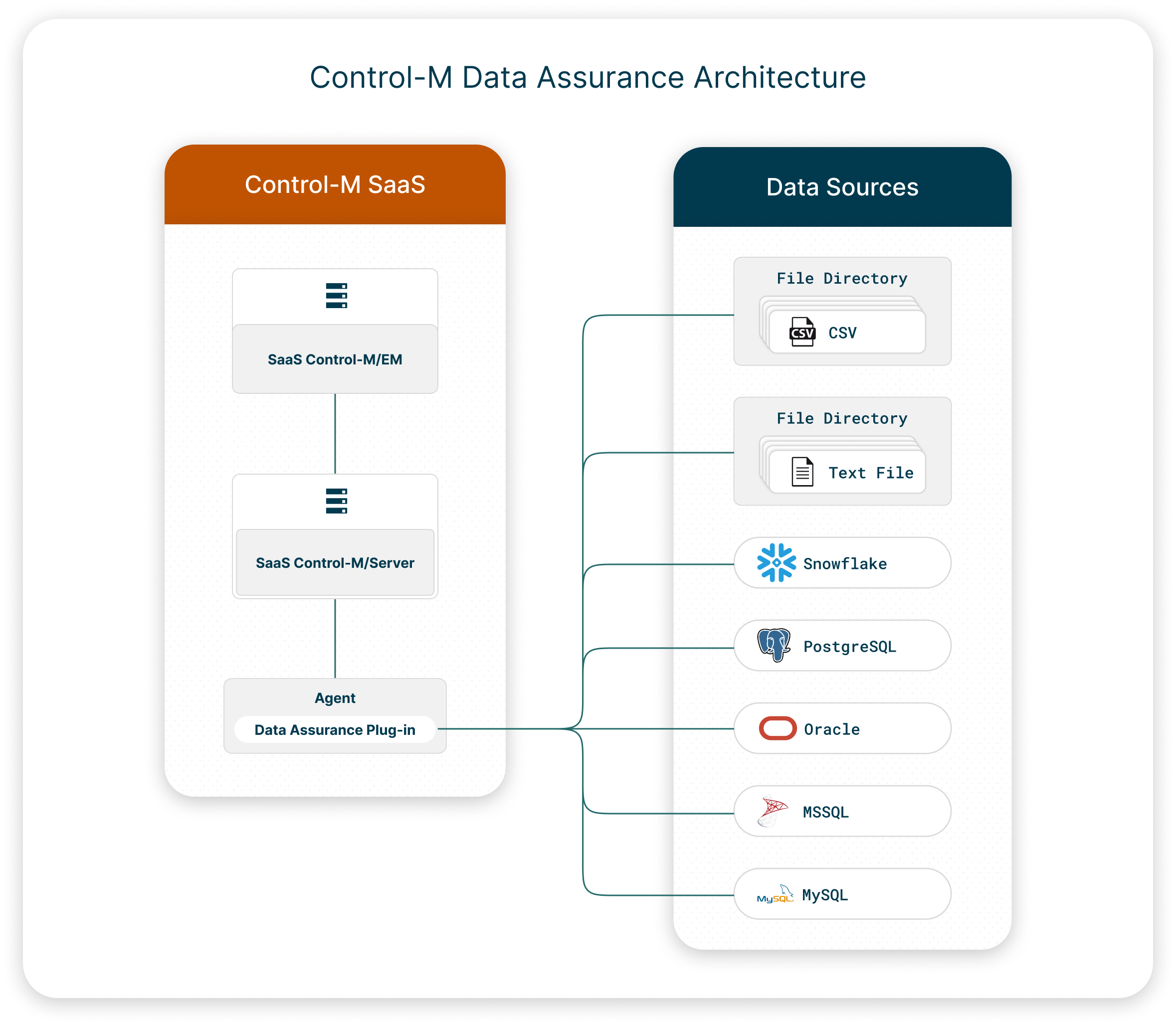
The following diagram shows the logical architecture of a typical Data Assurance add-on:
Setting Up Data Assurance
This procedure describes how to set up and get started with Data Assurance.
Begin
-
Add Data Sources: Create a centralized connection profile for one or more data sources with the Data Processing and Analytics Connection Profiles.
-
Create Data Assurance Jobs: Create one or more Data Assurance jobs, as described in Creating a Job, with Data Assurance Job attributes.
-
Create Validation Rules: Define one or more validation rules, as described in Creating Validation Rules.
-
Arrange, Run, and Monitor Jobs: Integrate your Data Assurance jobs into one or more workflows, run the required jobs, and monitor the status of your Data Assurance jobs via the Data Assurance Dashboard, as described in Data Assurance Dashboard.
Creating Validation Rules
This procedure describes how to create one or more validation rules, which enable you to validate specific data attributes (via metrics and threshold values) across an entire dataset, a single column in the dataset, or a selection of values that you define in a custom SQL query.
Before You Begin
-
Verify that you have added at least one data source and created at least one Data Assurance job, as described in Setting Up Data Assurance.
Begin
-
Click a Data Assurance job.
The Data Assurance job properties appear in the right pane.
-
Do one of the following to determine which files or database table rows (records) in the datasets are scanned:
-
File Directory: From the Files to Validate section in the General tab of the job properties pane, define the file selection attributes, as described in File Selection Attributes.
-
Database: From the Records to Validate section in the General tab of the job properties pane, define the record selection attributes, as described in Record Selection Attributes.
This option is only available if you select a dataset that contains a column with a date-, time-, or date-and-time-based data type when you define the Dataset job attribute.
-
-
Do one of the following, according to the data source type:
-
Database: Under the Records to Validate section in the General tab of the job properties pane, click Add Rule.
-
Text File Directory: Under the Files to Validate section in the General tab of the job properties pane, click Add Rule.
-
CSV File Directory: Do the following:
-
The Records to Validate section appears in the General tab of the job properties pane.
-
From the Records to Validate section, define the record selection attributes, as described in Record Selection Attributes.
-
Under the Files to Validate section in the General tab of the job properties pane, click Add Rule.
-
The Choose Rule Scope dialog box appears, which enables you to define the scope of the validation rule.
-
-
Select the required validation scope, which is the range of values in the dataset that the validation rule scans, as follows:
-
Entire Dataset: Scans the CSV files or database records in the dataset, according to the file or record selection attributes that you defined.
-
One Dataset Column: Scans one column in the CSV files or database table dataset, according to the file or record selection attributes that you defined. You determine the column that is scanned when you define the validation rule.
The CSV file schema enables Data Assurance to scan all the values from a single, user-defined column in every CSV file that matches the file selection attributes.
-
SQL Query: Scans the entire dataset or directory of CSV files in an SQL query that you define.
-
Directory: Scans the text file directory.
-
File: Scans the text files inside the text file directory.
The Validation Rules dialog box appears.
-
-
Do the following to define the validation rule:
-
Define the following validation rule attributes, based on the validation scope:
-
Non-SQL Query Scope:
-
Metric: A predefined standard of measurement, such as minimum length, standard deviation, or average that is specific to the data source type and validation scope, as described in Metric Attributes.
-
Data Column: The name of the column that is validated, when the scope is a single column in the dataset.
-
Operator: A mathematical function that creates a relationship between the metric and the threshold, such as equal, be greater than, or be between.
BMC recommends that you use a range operator, such as greater than or equal to, instead of equal to with metrics that return decimal numbers.
-
Threshold: The result that must be met for the validation rule to pass and signify that no inconsistency or inaccuracy is found.
The validation rule appears in the following format:
<Metric> ... must <Operator> <Threshold>
-
File count must be greater than or equal to 100
-
Address must have a Missing Values Percent that is equal to 0
-
-
SQL Query Scope:
-
Metric description: A user-defined description of the metric that you build in the SQL query box.
-
SQL Query Box: A user-defined query, written in SQL query syntax.
(CSV file directories only) You must define the table name as CSV.
-
The following SQL query enables you to scan the entire Uniform_Coffee dataset in a database data source:
CopySELECT COUNT(*) AS False_Count
FROM Uniform_Coffee
WHERE Current_Subscriber = 'FALSE' -
The following SQL query enables you to scan all CSV files in a CSV file directory data source:
CopySELECT COUNT(*) AS False_Count
FROM CSV
WHERE Current_Subscriber = 'FALSE'
-
-
-
-
Determine the alert type and job completion behavior when the validation rule is not met, as follows:
-
Critical: A Critical alert appears on the Data Assurance Dashboard, but the job ends Not OK.
-
Warning: A Warning alert appears on the Data Assurance Dashboard and the job ends OK.
-
-
(Optional) Click
 to test the validation rule.
A test result message appears.

-
(Optional) Click Add Rule to define another validation rule for this job.
-
-
Validation Scope: One Dataset Column
-
Data Column: Address
-
Metric: Missing Values Percent
-
Operator: Equals
-
Threshold: 0
-
Alert: Critical

The Validation Rules (<Number_of_Rules_Defined>) section appears. You can click Edit Rules to define up to 50 validation rules.
Tango Coffee, a coffee roaster with a subscription service, creates the following validation rule to verify that no addresses are missing from their customer information database:
Before they ship out their monthly subscriptions, Tango Coffee runs a Data Assurance job with this rule. The job ends Not OK and sends a Critical alert to the Data Assurance Dashboard that 3% of the addresses are missing. This enables the roaster to contact the customers with the missing addresses, add the missing information to the database, and then forward the complete monthly shipping list to their courier service so they can fulfill all customer subscriptions on time.
Defining a CSV File Schema
This procedure describes how to define a CSV file schema, which enables a Data Assurance job that is connected to a CSV file directory data source to read the structure of the files in your CSV file directory. You can either define the schema manually or upload a CSV file with a schema that matches the CSV files in your file directory.
Begin
-
From the Files to Validate section in the General tab of the job properties pane, click Define Schema.
The Schema (CSV File Format) dialog box appears.
-
Define the following attributes to configure how the Data Assurance job reads the CSV files in the file directory:
-
Tables have headers: Toggle on if the tables in the CSV files contain headers.
-
Delimiter (Column Separator): From the drop-down list, select the delimiter that is used in the CSV files.
-
If the file does not match the schema: Click one of the following options:
-
Skip and proceed to the next one
-
Stop Data Assurance job and set to Ended Not OK
If all of the CSV files in your CSV file directory do not conform to the same schema, you must create a separate Data Assurance job and define a schema that matches those CSV files to successfully scan them.
-
-
-
Do one of the following:
-
Upload a CSV File: Do the following:
-
In the Define Schema field, click Upload CSV.
A file browser window opens.
-
Navigate to the relevant directory and select a CSV file with a schema that matches the CSV files in your directory.
You can select and upload any of the CSV files from your CSV file directory data source, or a CSV file with a matching schema from a different location.
Data Assurance extracts the schema from the uploaded file, and the schema appears in the Schema Definition section of the Schema (CSV File Format) dialog box.
-
Review the schema and then add, edit, or delete the schema fields as required, as described in Schema Attributes.
-
Click Apply.
-
-
Manually Define the Schema: Do the following:
-
In the Define Schema field, click Define Manually.
The schema appears in the Schema Definition section of the Schema (CSV File Format) dialog box.
-
Add the schema fields as required, as described in Schema Attributes.
-
Click Apply.
-
The schema is saved to the Data Assurance job.
-
Schema Attributes
The following table describes the schema attributes that you can define in the Schema (CSV File Format) dialog box, as described in Defining a CSV File Schema.
|
Attribute |
Description |
|---|---|
|
# |
Determines the schema column number. |
|
Column Name |
Determines the header title in the relevant schema column. |
|
Data Type |
Determines the data type that appears in the relevant schema column, as follows:
|
|
Date Format |
Determines how the date, date and time, or time data type values are formatted in the CSV schema, according to a combination of any of the following format tokens:
|
Metric Attributes
The following table describes the attributes for each Data-Assurance-provided, predefined metric that you can define in a validation rule. You can click the Validation Alerts tab in the bottom pane of the Data Assurance Dashboard to monitor and compare the calculated metric values with the desired threshold values defined in your validation rules.
|
Metric |
Description |
|---|---|
|
File Count |
Calculates the number of files that are located in the text file directory data source. |
|
Maximum File Size (Bytes) |
Calculates the size of the largest file that is located in the text file directory data source. |
|
Minimum File Size (Bytes) |
Calculates the size of the smallest file that is located in the text file directory data source. |
|
All Filenames Match Regex |
Determines whether all filenames in the text file directory match the regex (regular expression) value that you define. A regular expression is a text pattern that enables you to search for character strings. For more information, see Regex Symbols. |
|
Character Count |
Calculates the number of characters in each text file, according to formatting rules that you define. |
|
Duplicate Lines |
Calculates the number of duplicate lines in each text file, according to the range of lines that you define. |
|
Empty Lines |
Calculates the number of empty lines (lines without any characters) in each text file, according to the range of lines that you define. |
|
Encoding Valid |
Determines whether each text file is correctly encoded, according to the range of lines that you define. All files are encoded with a specific character set and byte format that enables computers to convert characters into bytes for storage and user display. Common file encodings include UTF-8, UTF-16, ASCII, and Windows-1252 (ANSI). |
|
Line Count |
Calculates the number of lines in each text file, according to the range of lines that you define. |
|
Determines whether the line endings in each text file (which are not visible in the text editors where they are created) are configured for the required operating system, as follows:
After you select the line ending style, you must determine the range of lines that this metric applies to. |
|
|
Lines Containing String |
Calculates the number of lines that contain the string of text that you define, according to the range of lines that you define. |
|
Lines Matching Regex |
Calculates the number of lines that match the regex (regular expression) value that you define, according to the range of lines that you define. A regular expression is a text pattern that enables you to search for character strings according to formatting rules that you define. For more information, see Regex Symbols. |
|
Lines Not Matching Regex |
Calculates the number of lines that do not match the regex (regular expression) value that you define, according to the range of lines that you define. A regular expression is a text pattern that enables you to search for character strings according to formatting rules that you define. For more information, see Regex Symbols. |
|
Lines with Leading Whitespace |
Calculates the total number of lines in each text file that begin with one or more whitespace characters, according to the range of lines that you define. |
|
Lines with Trailing Whitespace |
Calculates the total number of lines in each text file that end in one or more whitespace characters, according to the range of lines that you define. |
|
Maximum Line Length |
Finds the line in each text file with the largest number of characters and calculates that number, according to the range of lines that you define. |
|
Minimum Line Length |
Finds the line in each text file with the smallest number of characters and calculates that number, according to the range of lines that you define. |
|
Non-Empty Lines |
Calculates the number of lines in each text file that contain one or more characters, according to the range of lines that you define. |
|
String Occurrences |
Calculates the number of times a user-defined string appears in each text file, according to the range of lines that you define. |
|
Special Characters Count |
Calculates the number of special characters in each text file, according to the range of lines that you define. |
|
Word Count |
Calculates the number of words in each text file, according to formatting rules that you define. |
|
Row Count |
Calculates the number of rows, not including the header, in a database table or directory of CSV files. |
|
Missing Values Count |
Calculates the number of null values that are in a database table, a directory of CSV files, or a single column of a database table or CSV file. There are 5,000 rows in a SWIFT code dataset column. 120 rows are empty. The metric calculates a missing values count of 120. |
|
Missing Values Percent |
Calculates the percentage of null values in a database table, a directory of CSV files, or a single column of a database table or CSV file. In a dataset of 5,000 credit card payments, the Merchant Category Codes column contains 400 null values. The metric calculates a missing values percentage of 8 (from 400 ÷ 5,000). |
|
Distinct Values Count |
Calculates the number of distinct, non-null values in a single column of a database table or CSV file. The following values appear in a dataset column, which is symbolized by [ ] (square brackets): [A, B, B, C, C, <null value>, D] The metric calculates 4 distinct values for A, B, C, and D. Data Type: Text and Numeric Threshold Value: Number |
|
Minimal Text Length |
Calculates the shortest length of characters among all of the non-null values in a single column of a database table or CSV file. This metric applies only to text. |
|
Maximal Text Length |
Calculates the longest length of characters among all of the non-null values in a single column of a database table or CSV file. This metric applies only to text. |
|
Average Text Length |
Calculates the average length of characters among all of the non-null values in a single column of a database table or CSV file. This metric applies only to text. |
|
Distinct Values Percent |
Calculates the percentage of distinct, non-null values in a single column of a database table or CSV file. There are 10,000 non-null USD, EUR, and GBP currency symbols in a dataset column. The metric calculates a distinct values percentage of 0.03 (from 3 ÷ 10,000). Scope: Single column in a CSV file directory or database Data Type: Text and numeric Threshold Value: Number |
|
Values Matching Regex Count |
Calculates the number of values in a single column in a CSV file directory or database that match the regex (regular expression) value that you define. A regular expression is a text pattern that enables you to search for character strings according to formatting rules that you define. For more information, see Regex Symbols. (MSSQL data sources only) In this metric, you can only search for MSSQL LIKE wildcards, as described in the MSSQL documentation. |
|
All Values Matching Regex |
Determines whether all of the values in a single column in a CSV file directory or database match the regex (regular expression) value that you define. A regular expression is a text pattern that enables you to search for character strings according to formatting rules that you define. For more information, see Regex Symbols. (MSSQL data sources only) In this metric, you can only search for MSSQL LIKE wildcards, as described in the MSSQL documentation. |
|
Minimum Value |
Finds the smallest numerical value in a single column of a database table or CSV file. |
|
Maximum Value |
Finds the largest numerical value in a single column of a database table or CSV file. |
|
Average Value |
Calculates the numerical average of all values in a single column of a database table or CSV file. |
|
Standard Deviation |
Calculates the standard deviation of all the values in a single column of a database table or CSV file. A standard deviation measures how spread out the values in a set are from the average of all those values. |
|
Variance |
Calculates the average of the squared differences from the average for numerical values in a single column of a database table or CSV file. This statistical measure indicates the degree of spread in the data distribution. |
|
Data Asymmetry Score |
Calculates the asymmetry of the data distribution in a single column of a database table or CSV file. A value of zero indicates symmetric distribution, positive values indicate right-skewed data, and negative values indicate left-skewed data. |
|
Earliest Value |
Calculates the earliest date in a single column of a database table or CSV file. |
|
Latest Value |
Calculates the latest date in a single column of a database table or CSV file. |
Regex Symbols
The following table lists common regex (regular expression) symbols that you can include in metrics that search for user-defined regex values.
|
Regex Symbol |
Description |
|---|---|
|
. |
Matches any single character, except for line breaks. INVOICE.2026 matches invoice numbers INV-2026 and INV_2026. |
|
* |
Matches zero or more occurrences of the preceding character. 0*25 matches 25, 025, and 0025. |
|
.* |
Matches zero or more characters, except for line breaks. ERROR.* matches ERROR, ERROR occurred, and ERROR: File Yankee_Coffee was not found. |
|
\d |
Matches any digit from 0 through 9. CUST-\d\d\d matches the three-digit customer ID CUST-123. |
|
+ |
Matches one or more instances of the preceding character or regex symbol. \d+ matches 314, 66261, and 2997992. |
|
\w |
Matches a letter, digit, or underscore. Roast_Info_\w+ matches the filenames Roast_Info_Filter-07-01, Roast_Info_Our_Pick-09-06, and Roast_Info_27-09_Washed. |
|
\s |
Matches a blank space character, such as a whitespace or tab. First\sName matches First Name. |
|
? |
Matches all but the preceding character or regex symbol. orders? matches order and orders. |
|
{n} |
Matches exactly n occurrences of the preceding character or regex symbol. where the variable n is any digit from 0 through 9.
|
|
{n,m} |
Matches between n and m occurrences of the character or regex symbol. where the variables n and m are any digit from 0 through 9. \d{5,8} matches all customer ID numbers that are between five and eight digits long, such as 12345, 7654321, and 18273645. |
|
[A-Z] |
Matches one uppercase letter from A through Z. [A-Z]{3} matches USA. |
|
[a-z] |
Matches one lowercase letter from a through z. |
|
[xyz] |
Matches one character from a user-defined set of characters. where the xyz variables are three characters in the set. Score-[ABC] matches Score-A, Score-B, and Score-C. |
|
^ |
Matches the position at the beginning of a value or line. ^Error matches all lines that begin with the word Error, but does not match lines where Error appears later in the line. |
|
$ |
Matches the end of a value or line. Follow-Up Required: No% matches all customer feedback text files that contain the string Follow-Up Required: No, but does not match five files that record Follow-Up Required: Yes. This alerts customer service that they have not yet followed up with every customer who reviewed the latest coffee selection in their subscription package. |
|
\ |
Escapes the function of a regex symbol and treats it as text. You must first type the \ (escape character) and then the required special character to match any of the following special characters, which also serve as regex symbols: . * + ? ^ $ ( ) [ ] { } | \
|
File Selection Attributes
The following table describes the file selection attributes that enable you to filter your CSV and text file directory scans for specific filename patterns and modification dates.
|
Attribute |
Description |
|---|---|
|
All files |
Determines whether to scan all or only a selection of files in the CSV or text file directory data source, as follows:
|
|
Filename Pattern |
Scans the files that match the filename pattern and extension that you define, according to the data source, as follows:
|
|
Timeframe |
Scans all files that were modified in the timeframe that you define, as follows:
|
|
Only Last Modified |
Scans only the last modified file in the timeframe that you define. A Data Assurance job is defined to scan a text file directory for all files with the filename pattern CS_Ticket*.txt that were modified in the past 14 days. Over a hundred customer support tickets exist, but only the following file is scanned when the Only Last Modified attribute is toggled on: CS_Ticket_CS-20260004_missing_item_daniel_miller.txt |
|
Skip Previously Validated |
Skips all previously validated text files and scans the remaining files defined by these attributes. |
Record Selection Attributes
The following table describes the record (database or CSV table row) selection attributes that enable you to filter your dataset scans for records that were modified within a specific timeframe.
|
Attribute |
Description |
|---|---|
|
All Records |
Determines whether to scan all or only a selection of records (database or CSV table rows) in the dataset, as follows:
|
|
By timestamp column |
Determines which date-, time-, or date-and-time-based database table column is used to limit the record selection to only those entries that were made in the past number of days, hours, or minutes that you define in the From the last attribute. A Coffee_Producers dataset in an Oracle database contains, among other details, three separate columns that indicate the date, time, and timezone that each crop of coffee beans in each table record was harvested, as follows:
The Date_and_Local_Time column is selected. |
|
From the last |
Scans all records that were modified in the past number of days, hours, or minutes that you define, based on the date and time recorded in the column selected in the By timestamp column attribute. |
User-Defined Metrics
You can define your own metrics for text file directory data sources and integrate them into Data Assurance. These enable you to measure your data in ways that the predefined, Data Assurance-provided metrics do not.
The following procedures enable you to create and manage your user-defined metrics:
Creating a User-Defined Metric
This procedure describes how to define your own metric for text file data sources and add it to Data Assurance. This enables you to measure your data in ways that the predefined, Data Assurance-provided metrics do not.
Begin
-
Log in to the Agent where the Data Assurance plug-in is installed.
-
Do the following:
-
Write a new Data Assurance metric in Python, according to the Custom Metric Template instructions and examples in the _metric_template.py file that is located in the following directory on the Agent where the Data Assurance plug-in is installed:
-
UNIX: <Agent_Home>/ctm/cm/WDA/files_metrics/custom/
-
Windows: <Agent_Home>\ctm\cm\WDA\files_metrics\custom\
-
-
Save the new metric Python file to the same directory where the _metric_template.py file is located.
-
-
From the command line, navigate to the following directory:
-
UNIX: <Agent_Home>/ctm/cm/WDA/files_metrics/
-
Windows: <Agent_Home>\ctm\cm\WDA\files_metrics\
-
-
Run the following command:
-
UNIX: ./manage_metrics.sh add
-
Windows: manage_metrics.cmd add
The script runs and prompts you to define the parameters for the new metric, as described in User-Defined Metric Parameters.
-
-
Follow the prompts.
The script validates the user-defined metric and adds it to Data Assurance.
Listing Metrics
This procedure describes how to list Data Assurance metrics. This enables you to distinguish between the user-defined and predefined, Data Assurance-provided metrics that are currently available in Data Assurance.
Begin
-
Log in to the Agent where the Data Assurance plug-in is installed.
-
From the command line, navigate to the following directory:
-
UNIX: <Agent_Home>/ctm/cm/WDA/files_metrics/
-
Windows: <Agent_Home>\ctm\cm\WDA\files_metrics\
-
-
Run the following command:
-
UNIX: ./manage_metrics.sh list [all | custom | builtin]
-
Windows: manage_metrics.cmd list [all | custom | builtin]
Where:
-
all: Lists all available Data Assurance metrics.
-
custom: Lists all user-defined Data Assurance metrics.
-
builtin: Lists all predefined, Data Assurance-provided metrics.
-
Updating a User-Defined Metric
This procedure describes how to update a user-defined metric in Data Assurance, which eliminates the need to delete the current metric and add an updated version.
Begin
-
Log in to the Agent where the Data Assurance plug-in is installed.
-
Do the following:
-
Make a copy of the existing user-defined Data Assurance metric Python file, which is located in the following directory on the Data Assurance Plug-in Agent:
-
UNIX: <Agent_Home>/ctm/cm/WDA/files_metrics/custom/
-
Windows: <Agent_Home>\ctm\cm\WDA\files_metrics\custom\
-
-
Update the copied Data Assurance metric in Python, as required and according to the Custom Metric Template instructions and examples in the _metric_template.py file.
-
Save the updated metric Python file to the same directory where the _metric_template.py file is located.
-
-
From the command line, navigate to the following directory:
-
UNIX: <Agent_Home>/ctm/cm/WDA/files_metrics/
-
Windows: <Agent_Home>\ctm\cm\WDA\files_metrics\
-
-
List the current metrics to determine and record the required user-defined metric ID.
-
Run the following command:
-
UNIX: ./manage_metrics.sh update <Metric_ID>
-
Windows: manage_metrics.cmd update <Metric_ID>
./manage_metrics.sh update NumericLinesCount
The script runs and prompts you to define the parameters for the updated metric, as described in User-Defined Metric Parameters.
-
-
Follow the prompts.
The script validates the user-defined metric and updates it in Data Assurance.
Deleting a User-Defined Metric
This procedure describes how to delete a user-defined metric that was previously added to Data Assurance. If a user-defined metric is no longer required, this enables you to remove it from the list of possible metrics that users can select when they define a validation rule.
Begin
-
Log in to the Agent where the Data Assurance plug-in is installed.
-
From the command line, navigate to the following directory:
-
UNIX: <Agent_Home>/ctm/cm/WDA/files_metrics/
-
Windows: <Agent_Home>\ctm\cm\WDA\files_metrics\
-
-
Run the following command:
-
UNIX: ./manage_metrics.sh remove
-
Windows: manage_metrics.cmd remove
The script runs and prompts you to define the required metric ID, as described in User-Defined Metric Parameters.
-
-
Type the metric ID name.
A confirmation message appears.
-
Press y to confirm the user-defined metric deletion.
The specified user-defined metric is removed from Data Assurance.
User-Defined Metric Parameters
The following table describes the user-defined metric parameters that you must define when you create a new user-defined metric and add it to Data Assurance, as described in Creating a User-Defined Metric.
|
Parameter |
Description |
|---|---|
|
Metric ID (PascalCase) |
Defines the internal name of the user-defined metric that Data Assurance references when this metric is added to a validation rule. You must define this name in PascalCase, such as NumericLinesCount. |
|
Display Name |
Defines the user-defined metric name that appears in the list of available metrics when you define a validation rule. |
|
Description |
Defines a free-text metric description. |
|
File Type |
Determines the validation scope that this metric appears in when you define a validation rule, as follows:
|
|
Module Path |
Defines the relative pathname of the user-defined metric Python file inside the following directory:
|
|
Return Type |
Determines the value that the metric returns once it performs its calculation, as follows:
|
|
Version |
Defines the user-defined metric version. If you revise this metric at a later date, you run the following command to update this version number (or any parameter value):
|
|
Param Name |
Defines the name of the metric parameter that is defined in the user-defined metric Python file. Metric parameters contain additional required information for the metric calculation, such as regex-based metrics, encoding, and line ending style metrics, as described in Metric Attributes. |
|
Param Type |
Determines the type of information that the parameter contains, as follows:
A user defines a validation rule with a user-defined metric that searches for the string Total followed by a user-defined number value, such as 100. |
|
Required |
Determines whether the metric parameter is required, as follows:
|
|
Add valid values? |
Determines whether Data Assurance provides metric parameter value options, such as LF (Linux) and CRLF (Windows) in the Line Ending Style Valid metric, as follows:
|
Data Assurance Dashboard
The Data Assurance Dashboard tab, which you can access from the  drop-down list in the Monitoring domain, provides a high-level numeric and graphical analysis of all Data Assurance datasets and job validation statuses, alerts, and validation results, which enables you to identify data quality trends and issues as they occur. You can filter results by data source and job run date from the toolbar, and you can view all the datasets with unmet rules or browse a table of validation alerts in the bottom pane. The right Alert Details pane enables you to view the summary, output, and validation history of individual Data Assurance jobs that have triggered alerts, and you can click the job name in the Summary pane to open the job in a viewpoint to retrieve further job and neighbor information.
Configuring Data Assurance
This procedure describes how to configure Data Assurance in the dataAssurance.properties file, which enables you to change the default plug-in behavior when required.
Begin
-
Log in to the Agent where the Data Assurance Plug-in is installed.
-
Navigate to the following directory:
-
UNIX: <Agent_Home>/ctm/cm/WDA/data/
-
Windows: <Agent_Home>\ctm\cm\WDA\data\
-
-
Open the dataAssurance.properties file in a text editor.
-
Edit the required parameters, as described in Data Assurance Properties File Parameters.
-
Save and close the file.
-
(Publisher.enable, interval.seconds, and maxEvents parameters only) Run the following command to recycle the Agent:
-
UNIX: <Agent_Home>/cm/WDA/exe/cm_container restart
-
Windows: <Agent_Home>/cm\WDA\exe\cm_container.cmd restart
-
Data Assurance Properties File Parameters
The following table describes some of the dataAssurance.properties file parameters.

|
Parameter |
Description |
|---|---|
|
dataAssurance.display.detailed.response.job.output |
Determines whether detailed metric results appear in JSON format in the job output.
The following JSON-formatted detailed metric results appear in the job output when this property is defined as true: Copy
Default: false |
|
Determines whether job validation statuses, alerts, and validation results appear in the Data Assurance Dashboard. Default: true |
|
|
Defines the number of seconds to wait before alerts and job completion statuses appear in the Data Assurance Dashboard. Default: 10 |
|
|
Defines the maximum number of job validation statuses, alerts, and validation results (events) that are sent in a single chunk. Default: 1000 (1,000 events) |
|
|
dataAssurance.text.metric.maxFileSize.in.bytes |
Defines the maximum text file size that Data Assurance can read. Data Assurance skips files larger than this size. Default: 52428800 (50 MB) |
|
dataAssurance.text.metric.maxFilesCount |
Defines the maximum number of text files that a validation rule can validate. If a text file directory contains more than this number of files, Data Assurance skips the remainder. Default: 1000 (1,000 files) |
|
dataAssurance.text.metric.maxExecutionTime.in.seconds |
(Text file directory data sources only) Defines the maximum amount of metric calculation time. Metrics that take longer than this amount of time to calculate cause the job to end Not OK. Default: 600 (10 minutes) |
|
dataAssurance.DB.metric.maxExecutionTime.in.seconds |
(Database and CSV file directory data sources only) Defines the maximum amount of metric calculation time. Metrics that take longer than this amount of time to calculate cause the job to end Not OK. Default: 600 (10 minutes) |
|
dataAssurance.csv.sqlite.storeOnDisk |
Determines whether CSV file data is saved to memory or on disk. By default, Data Assurance loads the data from every CSV file that is located in a CSV file directory data source into an SQLite database. SQLite is a self-contained relational database engine that stores the entire database in a single file. This enables Data Assurance jobs to scan all or isolated sections of the CSV data that is defined by the CSV schema, as described in Defining a CSV File Schema. After the data validation metric is calculated, Data Assurance deletes the SQLite database, which clears the used memory or disk space and ensures that only the information that appears in the CSV files at the time of the job execution is accessed, since this information can constantly change.
Default: true |
|
dataAssurance.csv.sqlite.tempDir |
Defines a local or remote file directory where the CSV file data is saved when the dataAssurance.csv.sqlite.storeOnDisk parameter is set to true. Default: The CSV file data is saved to the host operating system temp directory when this parameter is left blank. |
 YouTube
 Facebook
 LinkedIn