CyberArk Vault Integration
Control-M supports retrieval of secrets (such as passwords, access keys, or security keys) from CyberArk vaults.
Control-M communicates with the CyberArk vault via either of the following methods:
-
CyberArk SDK Agent: A local CyberArk Software Development Kit (SDK) credential provider (CP) that is installed on an Agent, as shown in the following diagram:
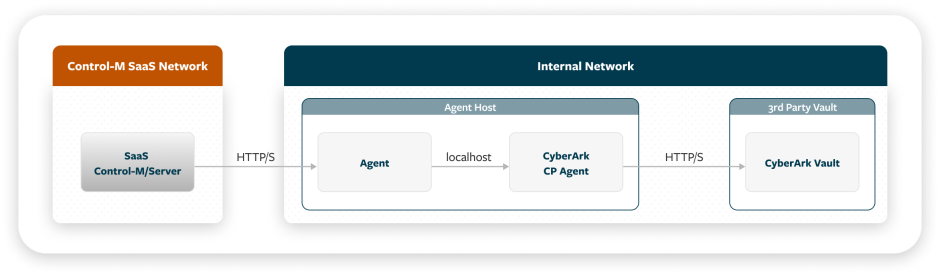
-
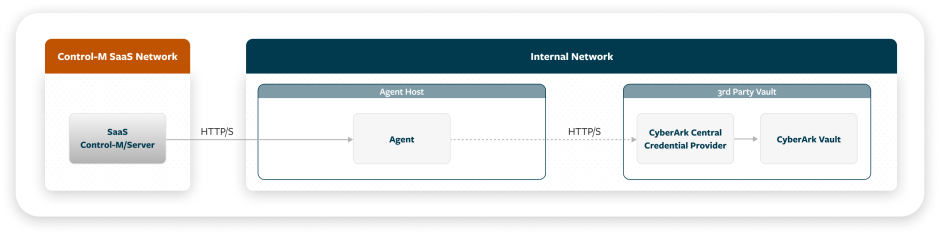
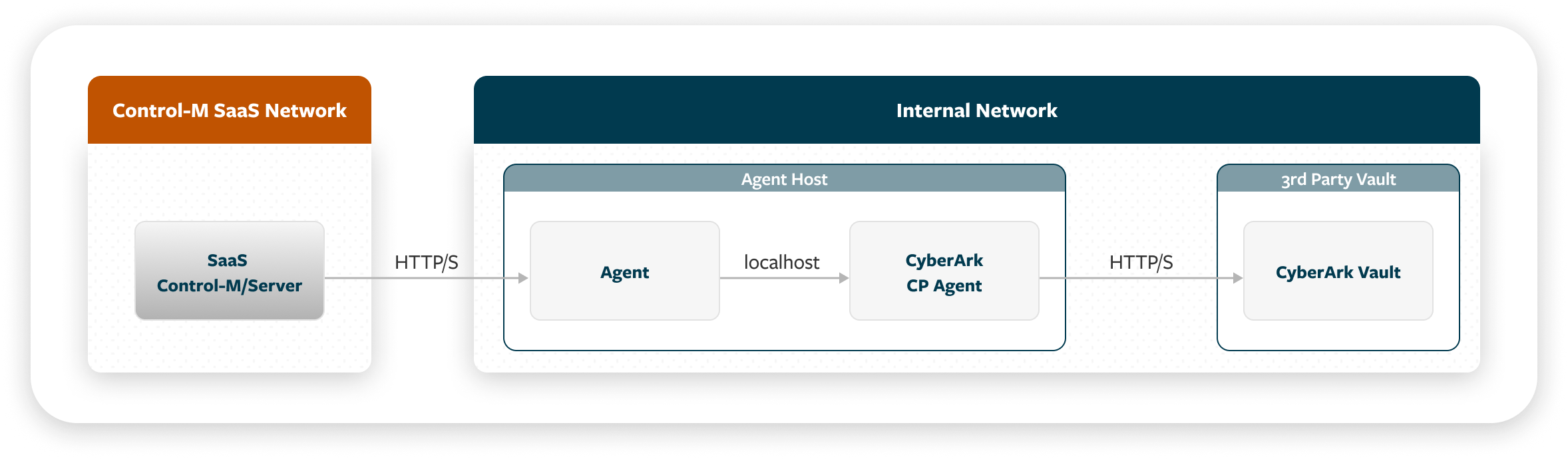
REST: A third-party CyberArk credential provider (CACP) that is stored in a third-party vault, as shown in the following diagram:
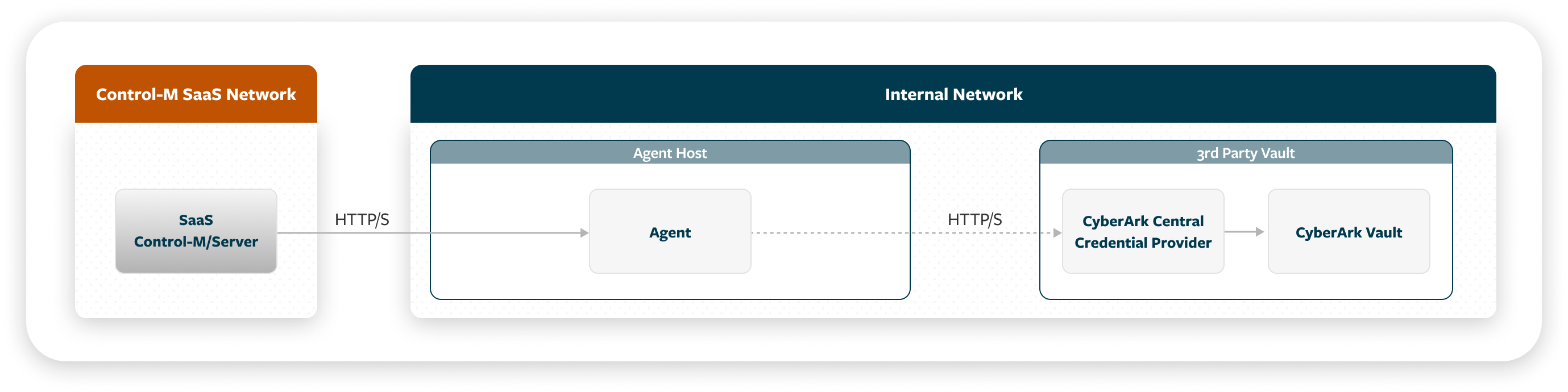
Setting Up a CyberArk Vault Integration
This procedure describes how to set up a CyberArk vault integration, which enables you to configure vault integration parameters and select the vault integrations that appear in
Before You Begin
-
Verify that you have installed and configured one of the following CyberArk components:
-
SDK Communication: CyberArk Credential Provider (CP) version 12.1 or higher on the Agent host machine
-
REST Communication: CyberArk Central Credential Provider (CCP) version 12.1 or higher
-
-
For REST communication with CyberArk CCP through a proxy, ensure that proxy server settings are defined for the Agent, as described in Proxy Server Configuration, and that an agproxy.json file was generated by the Agent.
-
If you want to use your own server certificate, create a keystore in the <AGENT_HOME>/ctm/cm/vault_cfg/ directory and import a server certificate for it, as described in Setting Up Your Own Server Certificate.
Take note of truststore details (name, password, and type). You will need to configure these details during setup, along with a parameter to disable trust of all server certificates (cyberark.rest.disable.trustall=true).
-
If you want client certificate authentication when you use a REST connection, copy your private key into the same directory (<AGENT_HOME>/ctm/cm/vault_cfg/). Take note of client certificate details (name, password, and type) for parameters that you must configure during setup.
-
For security reasons, BMC does not recommend that you use more than one application (identified by AppID) per Agent.
Begin
-
Open a command prompt window where your Agent is installed.
-
Run the Vault Configuration (vault-cfg) utility and configure Control-M integration with the vault, as follows:
You can, alternatively, use the Vault CLI (vault-cli) utility, for backward compatibility with previous versions of Control-M.
-
Navigate to the directory that contains the Vault Configuration utility:
<AGENT_HOME>/ctm/cm/vault_cfg/
-
Configure vault integration parameters by running one of the following commands:
-
Linux: ./vault-cfg.sh config update -p=<parameter> -v=<value>
-
Windows: vault-cfg.cmd config update -p=<parameter> -v=<value>
Repeat this command for each parameter that you want to update. For descriptions of the available parameters, see CyberArk Vault Integration Parameters for SDK Communication or CyberArk Vault Integration Parameters for REST Communication.
-
After you configure the vault integration parameters, you can display the current parameter values by running one of the following commands:
-
Linux: ./vault-cfg.sh config display
-
Windows: vault-cfg.cmd config display
-
-
If you want to delete your settings and disable the vault integration, use one of the following commands:
-
Linux: ./vault-cfg.sh config delete
-
Windows: vault-cfg.cmd config delete
-
-
-
Test the connection to your vault by running one of the following commands:
-
Linux: ./vault-cfg.sh test -f=<secret_parameters_file>
-
Windows: vault-cfg.cmd test -f=<secret_parameters_file>
In the command, <secret_parameters_file> is the path to a file that defines values for secret parameters in JSON format, as shown in the following example:
Copy{
"Type": "Secret:CyberArkVault:Basic",
"AppID": "finance",
"Safe": "financeDept",
"Folder": "Root",
"Account": "oracleSalaryService",
"Reason": "I need it to export salaries for VP"
}These parameters are described in CyberArk Secret Parameters in Connection Profiles. For a similar JSON format used by Control-M Automation API, see External Vault Secrets.
For a list of possible return codes for the connection test, see CyberArk Vault Integration.
-
-
-
Select the vault integrations to use in centralized connection profiles or Run as User definitions, as described in Configuring System Settings.
By default, vault integrations for all supported vault providers are available when you want to retrieve secrets for password-type fields in connection profiles or Run as User definitions. Use this procedure to hide any integrations that are not relevant to you from appearing in the user interface.
The selection of vault integrations does not affect the following:
-
Existing connection profile fields or Run as User fields that are already configured to retrieve secrets from vault integrations that are no longer enabled.
-
JSON references to secrets used by Control-M Automation API. For more information, see Secrets in Code.
-
Setting Up Your Own Server Certificate
This procedure describes how to set up your own server certificate, which involves creation of a keystore in the directory that contains the Vault Configuration utility and import of a server certificate for it.
Begin
-
Generate a new keystore in PKCS#12 format using the following command:
keytool -genkeypair -alias <keystoreAlias> -keyalg RSA -keysize 2048 -storetype PKCS12 -keystore /ctm/cm/vault_cfg/<your_keystore>.p12 -storepass <your_password>
-
Import a server certificate using the following command:
keytool -importcert -trustcacerts -alias <serverCertAlias> -file /home/path/<your_server_certificate>.cer -keystore /ctm/cm/vault_cfg/<your_keystore>.p12 -storepass <server_certificate_password>
-
Import a root CA certificate using the following command:
keytool -importcert -trustcacerts -alias <rootCAAlias> -file /home/path/<root_ca_certificate>.cer -keystore /ctm/cm/vault_cfg/<your_keystore>.p12 -storepass <root_ca_certificate_password>
CyberArk Vault Integration Parameters for SDK Communication
The following table lists the CyberArk Vault integration parameters that you can configure using the Vault CLI utility when you use SDK communication to connect with CyberArk CP.
You must type all parameter names in lowercase.
|
Parameter |
Description |
|---|---|
|
provider.name |
Determines the vault provider and enables vault integration. For integration with a CyberArk vault, set the value to cyberark Mandatory. No default. After you change the value of this parameter, you must recycle the relevant Control-M component (Control-M MFT, Control-M for Databases, or Application Integrator). |
|
communication.type |
Determines one of the following communication types with CyberArk.
Default: SDK After you change the value of this parameter to SDK, you must recycle the relevant Control-M component (Control-M MFT, Control-M for Databases, or Application Integrator). |
|
proxy.host |
Defines the hostname of the proxy server used to communicate with the CyberArk vault. Mandatory if communication with CyberArk goes through a proxy server. |
|
proxy.port |
Determines the number of the designated port on the proxy server used to communicate with the CyberArk vault. Mandatory if communication with CyberArk goes through a proxy server. |
|
proxy.user |
Defines the username for optional authentication of communication through the proxy server. |
|
proxy.password |
Defines the password for optional authentication of communication through the proxy server. |
|
proxy.nonProxyHosts |
Defines an optional comma-separated list of specific hosts to exclude from communication through the proxy server. |
|
cyberark.connection.port |
Defines the port for communication between Control-M and the local CyberArk Credential Provider. You can obtain this port number from the Credential Provider's main configuration file, main_appprovider.conf*. Default: 18923 |
|
cyberark.connection.timeout |
Determines the number of seconds to wait before the CyberArk Credential Provider connection times out. Default: 30 |
|
cyberark.sdk.path |
Defines the path to the directory that contains the CyberArk Credential Provider Java SDK, javapasswordsdk.jar (in Linux) or JavaPasswordSDK.jar (in Windows). Supported CyberArk Credential Provider versions are 12.1 or higher. Default:
After you change the value of this parameter, you must recycle the relevant Control-M component (Control-M MFT, Control-M for Databases, or Application Integrator). |
|
cyberark.retry.count |
Determines the number of times to retry retrieving the up-to-date password from CyberArk when the account is in Password‑Change‑In‑Process state. The retry interval is 1500 milliseconds. If the change does not complete within the configured number of retries, retrieval fails so that the job will not use an outdated password. Default: 3 |
CyberArk Vault Integration Parameters for REST Communication
The following table lists the CyberArk Vault integration parameters that you can configure using the Vault Configuration utility when you use REST communication to connect with CyberArk CCP.
You must type all parameter names in lowercase.
|
Parameter |
Description |
|---|---|
|
provider.name |
Determines the vault provider and enables vault integration. For integration with a CyberArk vault, set the value to cyberark Mandatory. No default. |
|
communication.type |
Determines one of the following communication types with CyberArk.
Default: SDK |
|
proxy.host |
Defines the hostname of the proxy server used to communicate with the CyberArk vault. Mandatory if communication with CyberArk goes through a proxy server. |
|
proxy.port |
Determines the number of the designated port on the proxy server used to communicate with the CyberArk vault. Mandatory if communication with CyberArk goes through a proxy server. |
|
proxy.user |
Defines the username for optional authentication of communication through the proxy server. |
|
proxy.password |
Defines the password for optional authentication of communication through the proxy server. |
|
proxy.nonProxyHosts |
Defines an optional comma-separated list of specific hosts to exclude from communication through the proxy server. |
|
cyberark.<APPID>.endpoint |
Defines the CyberArk Vault REST Server endpoint for the specific AppID for a connection to CyberArk Central Credential Provider. Mandatory. No default. |
|
cyberark.<APPID>.client.certificate.password |
Defines the client certificate password for the specific AppID, used together with the client certificate. The password is encrypted. |
|
cyberark.<APPID>.client.certificate.name |
Defines the client certificate name for the specific AppID. |
|
cyberark.<APPID>.client.certificate.type |
Defines the client certificate type for the specific AppID. Values:
Default: PKCS12 |
|
cyberark.<APPID>.os.user.authentication |
Determines whether OS user authentication is used for the specific AppID. Values:
Default: false |
|
cyberark.rest.connection.timeout |
Determines the number of seconds to wait before the CyberArk Central Credential Provider connection times out. Default: 5 |
|
cyberark.rest.disable.trustall |
Determines whether to disable trust of all server certificates. Set this parameter to true if you want to use your own server certificate, instead of trusing all server certificates. Values:
Default: false |
|
truststore.name |
Defines the truststore name. |
|
truststore.password |
Defines the truststore password. The password is encrypted. |
|
truststore.type |
Defines the truststore type. Values:
Default: PKCS12 |
|
cyberark.rest.retry.count |
Determines the number of times to retry retrieving the up-to-date password from CyberArk when the account is in Password‑Change‑In‑Process state. If the change does not complete within the configured number of retries, retrieval fails so that the job will not use an outdated password. Default: 3 |
|
cyberark.rest.retry.interval.millis |
Determines the retry interval, that is, the number of seconds between attempts to retrieve an up-to-date password from CyberArk when the account is in Password‑Change‑In‑Process state. Default: 1000 |
CyberArk Secret Parameters in Connection Profiles
The following table describes the parameters that are used to locate and retrieve passwords or secrets from a CyberArk vault. These parameters appear when you select the Use External Vault option for any password-type field in the centralized connection profile parameters or Run as User parameters. You can choose between retrieval of the secret based on default CyberArk parameters or based on a query to CyberArk.
The following table describes parameters that are available for retrieval of a secret based on default CyberArk parameters.
|
Parameter |
Description |
|---|---|
|
Vault Integration |
Determines one of the following vault types and/or methods to locate and retrieve the secret:
|
|
AppID |
Defines the unique ID of the application that issues the password request. Maximum length: 128 |
|
Safe |
Defines the name of the CyberArk Safe where the password is stored. Maximum length: 28 |
|
Folder |
(Optional) Defines the name of the folder where the password is stored. Maximum length: 160 Default: Root |
|
Account |
Defines the name of the account (that is, the object name) to retrieve. Maximum length: 165 |
|
Reason |
(Optional) Defines the reason for the request. Maximum length: 344 |
The following table describes parameters that are available for retrieval of a secret based on a query to CyberArk.
|
Parameter |
Description |
|---|---|
|
Vault Integration |
Determines one of the following vault types and/or methods to locate and retrieve the secret:
|
|
AppID |
Defines the unique ID of the application that issues the password request. Maximum Length: 128 |
|
Query |
Defines a query for the location and retrieval of the secret. This query enables you to include additional CyberArk properties. Maximum Length: 2,048 characters The query has the following format: Copy
Safe=financeDep;title=Sr;Department=IT
|
|
Reason |
(Optional) Defines the reason for the request. Maximum length: 344 |
 YouTube
 Facebook
 LinkedIn