Conversion from DFSMSrmm
Overview of DFSMSrmm Conversion
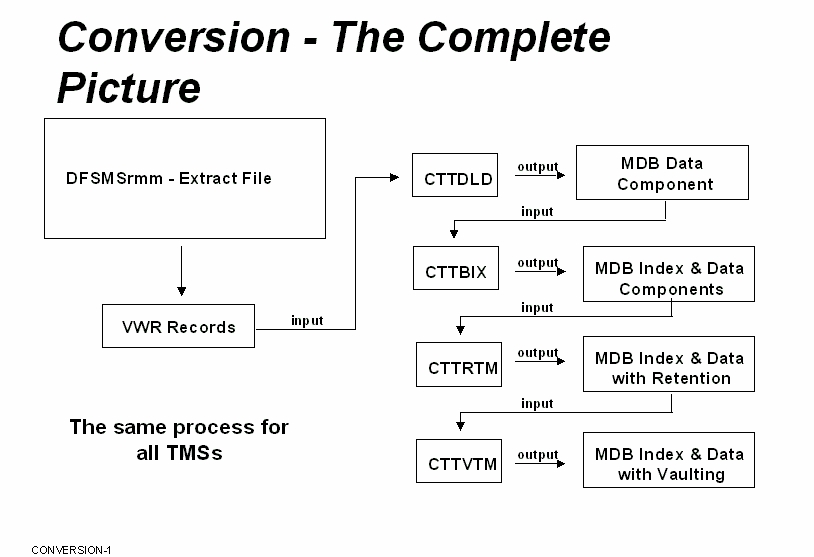
The following diagram indicates how the major DFSMSrmm components are converted to Control-M/Tape format.
Figure 14 Conversion of DFSMSrmm Conversion to Control-M/Tape
Clean-up
The DFSMSrmm Control Dataset stores information about tape volumes at your site. During conversion, a Control-M/Tape extracts a Media Database from that information.
To avoid propagating errors to the Control-M/Tape Media Database, ensure that the Control Dataset is free of errors and data discrepancies (e.g., chaining problems or dead volume entries) before conversion. Run DFSMSrmm utility EDGUTIL with parameter VERIFY(ALL) to detect errors in your Control Dataset and to correct all detected data discrepancies.
For more information about Control Dataset cleanup, see DFSMSrmm Conversion Process, and your DFSMSrmm documentation.
Volume Ranges
Control-M/Tape requires definition of a range of volume serial numbers (volsers) for each media type before it generates volume records. Make an inventory of all active volume ranges in your data center. This inventory should be used as a reference when specifying volume ranges to
Control-M/Tape during conversion.
Volumes in the DFSMSrmm Control Dataset that are not within the ranges specified to Control-M/Tape are not added to the Control-M/Tape Media Database.
Retention, Pool, and Vault Rules
Retention, pool, and vault policies are defined to DFSMSrmm in the following ways:
-
Online through the "Display Dataset VRS" panel
-
Through user Exit EDGUX100
When tape management rules are created for Control-M/Tape, both types of definitions must be considered. For more information, see Step 10: Convert the VRS into Rules.
External Data Manager
Control-M/Tape can track tape volumes that are managed by an External Data Manager (EDM) such as DFSMShsm or CA-Disk. If DFSMSrmm interfaces with an EDM at your site, appropriate Control-M/Tape rules must be defined to identify the relevant datasets as EDM controlled.
Use the Rule Definition screen to specify EDM datasets to
Control-M/Tape.
For more information, see Step 10: Convert the VRS into Rules.
DFSMSrmm Conversion Process
The process of conversion from DFSMSrmm to Control-M/Tape includes:
-
Executing DFSMSrmm utilities.
-
Editing operations.
-
Running Control-M/Tape jobs.
-
Creating vault and/or pool definitions through the Control-M/Tape Online facility.
The steps required for DFSMSrmm to Control-M/Tape conversion are described in detail in the remainder of this chapter. The conversion steps are accessed by the INCONTROL Installation and Customization Engine (ICE).
Use the following steps to begin conversion from DFSMSrmm to Control-M/Tape.
-
Enter ICE as described in the ICE chapter of the INCONTROL for z/OS Installation Guide.
-
In the Major Step Selection screen, type CTT in the product field, select "INSTALL CTx" (ICE option3) from the IOA installation menu, and press Enter. The Control-M/Tape installation menu is displayed.
-
Choose major step 16 "Conversion from DFSMSrmm."
The following screen is displayed.
Figure 15 ICE Facility Screen for Converting DFSMSrmm to Control-M/Tape
Copy---------------------------- Minor Steps Selection ---------------------------
Environment: IOA610 Product: CTT
Major Step: 16 Conversion from DFSMSrmm
Sel values: S Select step C Mark step as completed R Reset status
B Browse Step X Mark step as excluded ? Help
PF7/PF8 To scroll through all Steps
-------------------------------------------------------------------------------
Sel Step Status Type Opt Description
=== ==== ====== ==== === ===========
. 1 Edit R Set Conversion Parameters
. 2 Job R Compile and Link Conversion Programs
. 3 Extrnl Stop Tape Activity
. 4 Job Format Media Database
. 5 Extrnl Prepare DFSMSrmm Control Dataset
. 6 Job Produce the DFSMSrmm Extract File
. 7 Job Convert the Extract File into MDB
. 8 Extrnl Define Vaults
. 9 Extrnl Define Scratch Pools
. 10 Extrnl Create Control-M/Tape Rules
. 11 Extrnl R Adjust Rule List
. 12 Job Apply Vault Rules
. 13 Job Apply Retention Rules
. 14 Job Verify Media Database Integrity
. 15 Extrnl Check Problematic Datasets and Volumes
. 16 Extrnl Resume Tape Activity
. 17 Job Y Collect Statistics for Stacking
------------------------------> End of Minor Steps <---------------------------
If you are not familiar with ICE, review the ICE chapter in the INCONTROL for z/OS Installation Guide.
To convert the DFSMSrmm Control Dataset to the Control-M/Tape Media Database, perform the following steps.
Step 1: Set Conversion Parameters
Modify the conversion parameters to accord with the standards at your site.
This step allows you to edit the CTTRMMDF member in the IOA MAC library, which contains the conversion parameters.
Because these parameters are Assembler-H SETC Global variables, they must correspond to Assembler language format. For example, values must be enclosed in quotation marks, comments must be indicated by an asterisk in column one, and so on.
General Conversion Parameters
The following are the general DFSMSrmm conversion parameters.
Table 30 General DFSMSrmm Conversion Parameters
|
Parameter |
Description |
|---|---|
|
VOLRECN |
Maximum number of volumes. Default: 50000 |
|
VOLCHANN |
Maximum number of volume chains. Default: 30000 |
|
BADDSNN |
Maximum number of invalid datasets. Default: 10000 |
Vault Name Parameters
DFSMSrmm typically defines three vaults:
-
LOCAL
-
REMOTE
-
DISTANT
If you want to use different vault names in Control-M/Tape, assign values to the parameters in Table 31. Otherwise, the vaults are named in Control-M/Tape the same way that they are named in DFSMSrmm.
Table 31 DFSMSrmm Vault Name Parameters
|
Name |
Description |
|---|---|
|
LOCAL |
Name of vault that replaces the DFSMSrmm-defined LOCAL vault. Default: LOCAL If the default is used, tapes are vaulted to the LOCAL vault both in Control-M/Tape and in DFSMSrmm. If you assign this parameter a different value, all tapes vaulted in vault LOCAL in DFSMSrmm are vaulted in Control-M/Tape in the vault with the name as assigned. |
|
REMOTE |
Name of vault that replaces the DFSMSrmm-defined REMOTE vault. Default: REMOTE If the default is used, tapes are vaulted to the REMOTE vault both in Control-M/Tape and in DFSMSrmm. If you assign this parameter a different value, all tapes vaulted in vault REMOTE in DFSMSrmm are vaulted in Control-M/Tape in the vault with the name as assigned. |
|
DISTANT |
Name of vault that replaces the DFSMSrmm-defined DISTANT vault. Default: DISTANT If the default is used, tapes are vaulted to the DISTANT vault both in Control-M/Tape and in DFSMSrmm. If you assign this parameter a different value, all tapes vaulted in vault DISTANT in DFSMSrmm are vaulted in Control-M/Tape in the vault with the name as assigned. |
DUMMYDS Invalid Dataset Name Parameter
The conversion program saves to a dataset details of all data found in the DFSMSrmm database that is invalid, for example because of invalid dataset or volume information.
The default name for this dataset is DUMMY.RMM.CONVERT.DATASET, but you can use the DUMMYDS parameter to set any name you want.
The conversion program regards a volume as invalid in the following cases:
-
The volume is part of a broken chain. This occurs where the volume is recorded in DFSMSrmm as the second volume of a dataset, but there is no corresponding first volume.
-
The volume is marked as active, that is, it has either USER or MASTER status in DFSMSrmm, but there is no corresponding dataset for the volume.
Saving the Parameters
When you are done assigning values to the conversion parameters, save the CTTRMMDF member.
Step 2: Compile and Link Conversion Programs
This step consists of the following tasks:
-
Define EDM Datasets.
If an external data manager (EDM) is used at your site, you must modify the CTTCRM3 conversion program, by the following steps, before the job CONVRASM is run:
-
Locate the table identified by the symbol EDMTABLE in column 1 of the CTTCRM3 member in the IOA SAMPEXIT library.
-
Review the editing instructions that immediately precede this symbol in the member.
-
Modify the table according to your site standards.
If the CTTCRM3 member is modified after the CONVRASM job has been used to compile the conversion programs, changes to the EDM table in this member do not affect the conversion process. Therefore, if you make changes to the EDM table in the CTTCRM3 member, you must recompile the conversion programs, by rerunning the CONVRASM job, in order to implement the changes you have made.
-
-
Define retention for EDM-controlled datasets in the Control-M/Tape rules that you created during Step 10: Convert the VRS into Rules.
-
Define additional locations (vaults). DFSMSrmm usually defines three vaults:
-
Local
-
Remote
-
Distant
You can now define your own additional locations.
If you do define additional locations, you must modify the CTTCRM1 program before you run the CONVRHSM job, by performing the following tasks:
-
Locate the table LOCTABLE in column 1 of the CTTCRM1 in the IOA SAMPEXIT library.
-
Modify the LOCTABLE table by inserting new lines defining additional vaults, in accordance with the editing instructions that you will find in that table.
-
-
Compile the conversion programs by submitting the CONVRASM job.
All job steps must end with a condition code of0.
Step 3: Stop Tape Activity
-
If you intend to start Control-M/Tape in Global Phased mode or Global Production mode, stop all tape activity during the conversion process.
Tape datasets created during and after Step 6 of the conversion process are not converted.
Although it is not mandatory, BMC recommends that tape processing be halted while converting the tape management data in preparation for Global Test mode.
-
Control-M/Tape must not be active during the conversion process. If Control-M/Tape is already active, shut it down.
Step 4: Format the Media Database
-
Run the CONVFMDB job to format the Control-M/Tape Media Database and prepare it for conversion.
-
Submit the job.
All job steps must end with a condition code of0.
Step 5: Prepare DFSMSrmm Control Dataset
-
Use the DFSMSrmm EDGUTIL utility to verify that the DFSMSrmm Control Dataset is correct.
Use the expression PARM=‘VERIFY (ALL)’ for this purpose.
-
If the EDGUTIL utility detects errors, use the DFSMSrmm TSO ADD, CHANGE, DELETE, and LIST subcommands to update the information in the Control Dataset.
For more information about Control Dataset cleanup, see your DFSMSrmm documentation.
Step 6: Create the DFSMSrmm Extract File
-
Run the CONVREXT job to produce the DFSMSrmm Extract file that is used as input for the conversion process.
For more information, see "Creating an Extract Dataset" in the Performing Inventory Management chapter in the IBM manual Implementing and Customizing DFSMSrmm.
If you use a different job to create the DFSMSrmm Extract file, be sure to use the Julian date format, by specifying DATEFORM(J) to utility EDGHSKP.
-
Submit job CONVREXT.
All steps must end with a condition code of0.
Step 7: Convert the Extract File Into the Media Database
The CONVRMDB job converts the DFSMSrmm Extract file to the
Control-M/Tape Media Database.
-
The RMMEXT parameter is passed to the CONVRMM procedure in the CONVRMDB job. Modify this parameter in the //EXEC statement, which follows the //PEND statement, to reflect the name of the extract file created by the CONVREXT job.
-
RANGE statements for the conversion process are supplied through the DDstatement SYSIN. These statements identify the volume ranges in use at your site. For each RANGE statement set the following parameters.
Table 32 Parameters for DD Statement SYSIN RANGE Statements
Parameter
Description
FIRST
First volume serial number.
LAST
Last volume serial number.
MEDIA
Volume media type.
VENDOR
Vendor (optional).
You can add or delete RANGE statements as required.
Information in the DFSMSrmm Extract file about volumes that are not within the specified ranges is not converted to the Media Database.
For more information, see the description of the CTTDLD utility with MODE set to CONVERT in the Control-M/Tape chapter of the INCONTROL for z/OS Utilities Guide.
-
Verify that your changes are correct and submit the CONVRMDB job.
All job steps must end with a condition code of0. If the any of the job steps end with a non-zero condition code, check the messages in the job log to determine whether the conversion was performed satisfactorily.
Step 8: Define Vaults
-
Enter the Control-M/Tape Vault Definition screen, which is option TV in the IOA Primary Option menu.
-
Create vault definitions for your vaults.
You must create vault definitions for the LOCAL, REMOTE and DISTANT locations defined in DFSMSrmm.
If you changed the names of these vaults through conversion parameters specified in Step1 above, specify vault names that are the same as those defined in that step.
-
In DFSMSrmm, slot management is active for all locations (that is, all locations are assigned a cell count and every vaulted volume is assigned a slot number). In Control-M/Tape, slot management is active for a vault only if you define a capacity for the media types in the vault. Define a capacity for the media types in vaults where you want slot management to be active.
Step 9: Define Scratch Pools
If you do not intend to use scratch pools, skip this step and proceed to Step 10: Convert the VRS into Rules.
-
Enter the Control-M/Tape Pool Definition screen by specifying the TP option in the IOA Primary Option menu.
-
Create Control-M/Tape pools that reflect your tape management policies.
The pools must be created in accordance with the DFSMSrmm pools, as defined in member EDGRMMxx in the SYS1.PARMLIB library.
Step 10: Convert the VRS into Rules
-
Run the CONVRRLS job to convert the DFSMSrmm VRS record into Control-M/Tape's rules.
-
Submit job CONVRRLS.
All steps must end with a condition code of 0.
-
Enter the Control-M/Tape Rule Definition screen by specifying the TR option in the IOA Primary Option menu, and make sure that the job created the correct Control-M/Tape rules that reflect your tape management policies.
The rules must be created according to DFSMSrmm Vital Records and Exit EDGUX100 Policies, and must have the same retention specification and vaulting definitions as defined in DFSMSrmm through these Vital Records and Policies.
If you want to use scratch pools, the created rules must reflect this, and the rules must assign created datasets to the pools defined in Step 9: Define Scratch Pools.
-
If an External Data Manager (EDM) is used at your site (for example, DFSMShsm, then the EDM rules were created with Permanent retention (DO RETENTION= PERMANENT) by the conversion job, and you must change it manually to EDM (DO RETENTION=EDM).
BMC also recommends that you review the DEFEXPDT and EXPDTYPE parameters in the CTTPARM member before you continue. Standard DFSMSrmm processing does not include special EXPDT support, so you must include the EXPDTYPE=NONE expression in the CTTPARM member. However, if you implemented special EXPDT support by using DFSMSrmm exits or ACS routines, modify the DEFEXPDT parameter as necessary.
-
Ensure that EXTMASK parameter is set to Y, to enable extended masking characters. For more information, see the description of EXTMASK in the INCONTROL for z/OS Installation Guide:Installing.
Step 11: Adjust Rule List
In previous steps, new rules were created. In this step, you specify the names of the tables containing these rules in the Rule List member (RULLIST) of the Control-M/Tape PARM library. The RULLIST member is used to determine which rules are loaded when Control-M/Tape is activated. Access the sample Rule List member and enter a new line in the table for each of these names, using the format of the existing rules. The asterisk (*) in column one of each line is part of the specification syntax of rule member names. For additional information, see the organization and administration chapter of the Control-M/Tape User Guide.
Step 12: Apply Vault Rules
-
Run the CONVVTM job to apply the vault rules, created in "Step 10: Convert the VRS into Rules," to existing (converted) volumes.
This job runs Control-M/Tape utility CTTVTM in a special mode designed for the conversion process. For more information, see the description of the CTTVTM utility in the Control-M/Tape chapter of the INCONTROL for z/OS Utilities Guide.
-
Submit the job.
All job steps must end with a condition code of0. If any of the job steps end with a non-zero condition code, check the messages in the job log to determine whether vault management rules were applied satisfactorily.
-
Check the output of the job.
-
The Distribution report should indicate that volumes were not moved between locations (vaults). If this is not so, the vaulting rules do not function in accordance with DFSMSrmm Vital Records. Locate these rules, correct the problems, and restart the conversion.
The Distribution report may indicate volume movement within a vault, for example, a volume moving from one slot in a vault to another slot in the same vault. This situation is normal, and it reflects differences in slot management between DFSMSrmm and Control-M/Tape, not movement of volumes between locations.
Step 13: Apply Retention Rules
-
Run the CONVTRTM job to apply the retention rules created inStep 10: Convert the VRS into Rules.
This job runs the Control-M/Tape utility CTTRTM in a special mode designed for the conversion process. For more information, see the description of the CTTRTM utility in the Control-M/Tape chapter of the INCONTROL for z/OS Utilities Guide.
-
Submit the job.
This job must end with a condition code of0. If the job ended with a nonzero condition code, check the messages in the job log to determine if retention management rules were properly applied.
Step 14: Verify Media Database Integrity
-
Run the CONVIDB job.
This utility runs the CTTIDB utility to verify the integrity of the Media Database.
-
If the CTTIDB utility reports errors, it may indicate logical problems in the input data of the conversion program. In this case, check and correct the original data in DFSMSrmm and repeat the conversion process.
For more information about the CTTIDB utility, see the chapter that discusses media database integrity verification in the Control-M/Tape Implementation Guide, and the Control-M/Tape chapter of the INCONTROL for z/OS Utilities Guide.
You can also correct any problems directly in the Control-M/Tape Media Database using the CTTMUP utility. However, such manual corrections are lost if tape management data is reconverted. For more information, see the description of the CTTMUP utility in the Control-M/Tape chapter of the INCONTROL for z/OS Utilities Guide.
-
Submit the job.
All steps must end with a condition code of0. If the any of the job steps end with a non-zero condition code, check the messages in the job log to determine if the job was performed satisfactorily.
Step 15: Check Problematic Datasets and Volumes
When the conversion program finds logical problems with data in the DFSMSrmm Extract file, it assigns a special dataset name to the problematic volumes. The name of the special dataset name is determined by the value of the DUMMYDS parameter, described in Step 1: Set Conversion Parameters.
These problematic volumes indicate integrity problems within the DFSMSrmm database, not problems in the conversion program itself.
Use the following steps to display the names of the problematic volumes:
-
Enter the Control-M/Tape Inquire/Update screen, which is option TI in the IOA Primary Option menu.
-
In the DSNAME field on the Inquire/Update entry panel, specify the dataset name assigned to parameter DUMMYDS in Step 1 of the conversion process. If you have not changed the default, this is DUMMY.RMM.CONVERT.DATASET.
-
Enter Display type B and Record type DV in the DISPLAY TYPE and RECORD TYPE fields at the bottom of the screen.
-
Press Enter.
The names of the problematic volumes are displayed.
-
Check the DFSMSrmm database to determine the cause of the detected problems.
You can either correct the problems in DFSMSrmm and repeat the conversion, or you can correct the problems directly in the Control-M/Tape Media Database using the CTTMUP utility. For more information on the CTTMUP utility, see the Control-M/Tape chapter of the INCONTROL for z/OS Utilities Guide.
Corrections made to the Media Database using the CTTMUP utility are lost if the Media Database is reformatted during a subsequent conversion.
Step 16: Resume Tape Activity
-
Resume Tape processing.
-
You can now start Control-M/Tape.
Step 17: Collect Statistics for Stacking
If you do not intend to activate the Control-M/Tape Dynamic Dataset Stacking feature, skip this step and mark it as COMPLETE.
Run the CONVSTK job to collect dataset statistics from the Control-M/Tape Media Database after it has been converted.
The statistical information is used by the Control-M/Tape Dynamic Dataset Stacking facility. You must run this job with MODE set to MDB. For additional information, see the CTTSTK utility in the Control-M/Tape chapter of the INCONTROL for z/OS Utilities Guide.
 Communities
 Support Center
 YouTube
 Twitter
 Facebook
 LinkedIn