The Find feature enables you to search for folders, sub-folders, and jobs in a current workspace A working area in the Planning domain where you define and edit new jobs and SMART folders., based on a specific search criteria. In workspaces that contain multiple jobs, you can run a search based on job attribute values and use operators to refine your search for specific values, as described in Finding Jobs.
The Update feature enables you to simultaneously update multiple jobs in your workspace, which eliminates the need to manually change the same job attributes for more than one job. After you find jobs that match your search criteria, you update their assigned variable values, functions, substrings, and expressions.
The following scenarios show how you can use the Update feature:
-
Update jobs after moving them between environments, such as from testing to production.
-
Simultaneously update fields and values across multiple jobs and folders.
-
Update multiple job attributes to adhere to new Site Standards rules.
The following video describes the Find and Update features:
Finding Jobs
This procedure describes how to find folders, sub-folders, and jobs based on a specific attribute value.
Begin
-
From a workspace, in the left pane, click the Find tab.
-
Add Find criteria, as follows:
-
Click Select Attribute, and select the job attribute to find.
-
From the operators list, select an operator to filter your search for a specific value, as described in Filter Operators for Finding and Updating Jobs.
-
Type the search value.
-
(Optional) Select Case Sensitive.
-
(Optional) Add additional job attributes, operators, and values.
-
-
Click Find.
The search results appear in the Find Results tab in the bottom pane.
-
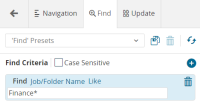
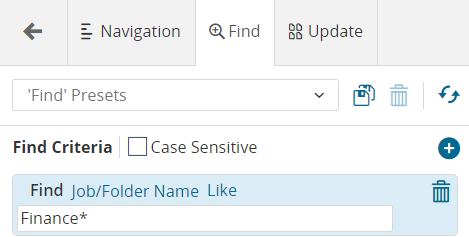
The following search value finds all job or folders with names that begin with Finance and end with any number of possible alphanumeric or symbol characters:
-
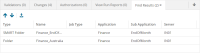
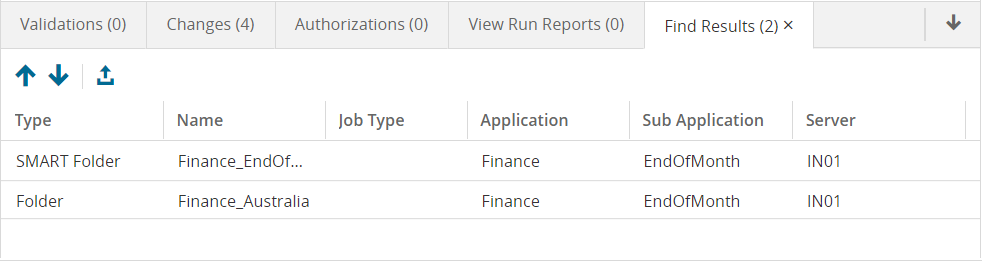
The following Find Results tab appears with the results of the Finance* search:
-
-
(Optional) Click
 to save your search criteria as a preset for later use.
By default, Control-M deletes presets after 60 days. To permanently save presets, see Saving Presets Permanently.
Updating Jobs
This procedure describes how to perform an update on multiple jobs simultaneously.
Begin
-
In the left pane of the workspace, click the Update tab.
-
Do one of the following to add Update criteria:
-
Do the following to update job or folder attributes:
-
Click Select Attribute and select the required attribute.
-
Click Assign, select the update type, and then enter the new value.
For more information, see Update Types.
-
-
Do the following to update job or folder attribute values:
-
Click Update and select Update Where.
-
Click Select Attribute to select the attribute that you want to change.
-
From the operators list, select an operator to filter your search to a specific value, and enter the value, as described in Filter Operators for Finding and Updating Jobs.
-
Click Assign, select the update type, and then enter the new value.
For more information, see Update Types.
-
You can add multiple update criteria to update multiple job attributes and values in multiple jobs simultaneously.
-
-
From the Update in drop-down list, select one of the following options:
-
Entire workspace: Updates job attributes and values throughout the entire workspace.
-
Selected jobs and folders: Updates the selected folders and jobs.
-
Find results: Updates the job attributes that you found in the Find tab, as described in Finding Jobs.
-
-
Click Update.
A summary of the changes appear in the Update results tab in the bottom pane.
-
Select the jobs in the grid and view the updated job attributes in the job properties pane to confirm your changes.
-
Click Validate to verify that there are no validation
The check that Control-M performs when you check-in jobs and SMART folders, which checks for errors in the job definitions. errors in the updated jobs. -
(Optional) Click
to save your update criteria as a preset for later use.By default, presets are deleted after 60 days. To permanently save presets, see Saving Presets Permanently.
Filter Operators for Finding and Updating Jobs
The following table describes the filter operators for Finding Jobs and Updating Jobs.
|
Operator |
Description |
|---|---|
|
Like |
Searches for field values with regular expressions. This is the default search operator. Find Folder Name Like F* finds all folder names starting with F. |
|
Not like |
Searches for fields that exclude values with regular expressions, such as *. Find Folder Name Not Like F* excludes all folder names that begin with F in the search. |
|
Is Exactly |
Searches for field value that exactly match the required value (no wildcards or regular expressions). |
|
Is Not Exactly |
Searches for field values that are not equal to the value provided (no wildcards or regular expressions). |
|
Starts With |
Searches field values that start with the value provided. Pattern-matching rules apply. Special characters such as * are not processed as literals unless there is a \. In the Description of a job:
|
|
Ends With |
Searches field values that end with the value provided. Pattern-matching rules apply. |
|
Contains |
Searches field values that contain the substring (exact or pattern) provided. Pattern-matching rules apply. |
|
Does Not Contain |
Searches field values that do not contain the substring (exact or pattern) provided. Pattern-matching rules apply. |
|
Is Empty |
Searches for fields that do not contain a value (NULL or empty string). |
|
Is Not Empty |
Searches for fields that contain a value. |
|
<, < =, >, or > = |
Searches for fields that are less than, less than or equal to, more than, or more than or equal to the value defined. Search for Keep Active jobs > 5 days. |


Update Types
The following table describes the update types that you can apply to the attribute value when Updating Jobs.
|
Type |
Description |
|---|---|
|
Assign |
Assigns a value to the attribute. |
|
Clear |
Clears the value of the attribute. |
|
Replace Substring |
Replaces a substring within the value of the attribute. |
|
Replace Expression |
Replaces an expression within the value of the attribute. |
|
Replace Prefix |
Replaces a prefix within the value of the attribute. |
|
Replace Suffix |
Replaces a suffix within the value of the attribute. |
Saving Presets Permanently
This procedure describes how to permanently save Find, Update, and Viewpoints presets.
Begin
-
Add a new RecentItemsCleanupIntervalMin Control-M/EM system parameter, as described in Adding Control-M/EM System Parameters, with the following values:
-
Category: general
-
Name: RecentItemsCleanupIntervalMin
-
Value: 0
-
Component Type: CMS
-
Component Name: *
-
Component Host: *
-
 YouTube
 Facebook
 LinkedIn