Disaster Recovery
Control-M Disaster Recovery (DR) enables you to run Control-M/EM and Control-M/Server on a secondary host if one or more of your Control-M Full Installation, Control-M/EM, or self-hosted Control-M/Server primary hosts fail during a disaster.
The installations on the DR site must be identical to the main site. If you have Control-M/EM or Control-M/Server with High Availability or an additional Control-M/EM Distributed, the DR site must contain the exact same architecture and components as the main site. If you upgrade a component on the main site, you must upgrade that same component on the DR site.
Control-M/EM and Control-M/Server require a database for the installation. However, in a disaster recovery environment, you need an additional database for replication. The replication database replicates data from the main site database to the DR site database. Both databases must be identical. The main site database is set to read/write. After you move to the DR site, the DR site database is set to read/write.
BMC assumes that database replication to the DR site is in place. Even though replication is essential for the Control-M optimal performance and data integrity, it is not included as part of the product. The implementation and maintenance of the database replication are the responsibility of your organization.
The replicated database at the DR site is in read-only mode to ensure data integrity.
The following topics describe the Disaster Recovery solution for Control-M/EM and Control-M/Server:
For information about upgrading Control-M/EM and Control-M/Server in a DR configuration, see Upgrading Control-M in a Disaster Recovery Configuration.
Control-M/EM Disaster Recovery
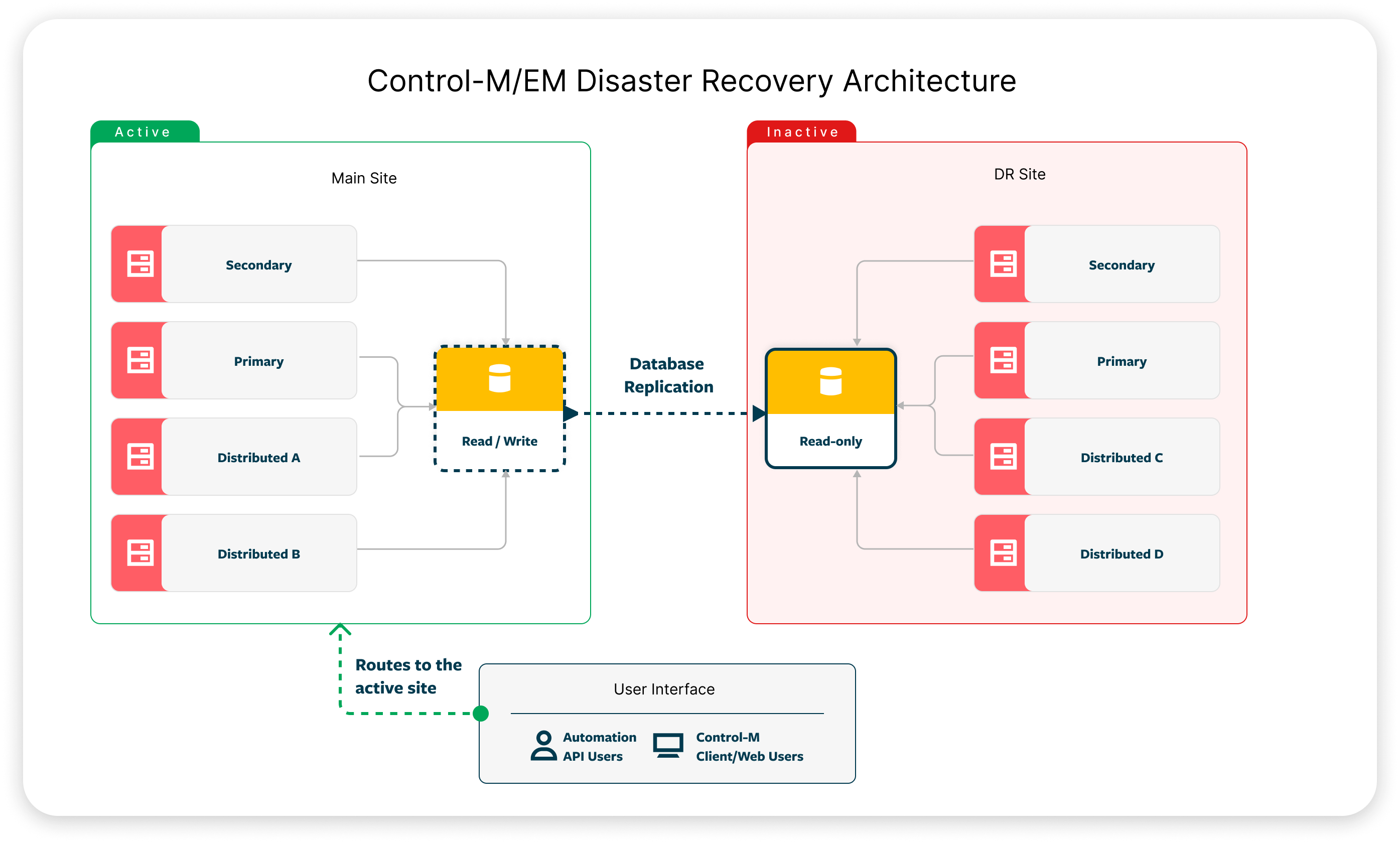
Control-M/EM on the main site and the DR site have different hostnames. To ensure a smooth transition to the DR site, BMC recommends that you create one endpoint for Control-M Web and Automation API so that when the DR site is active, the users and Automation API are not affected and can continue to work without any changes. You can create the logical name as a DNS entry, load balancer, or any other solution that enables you to have one endpoint to Control-M/EM. The endpoint must be directed to the production host when it is active and to the DR host when it is active.
The following diagram shows the Control-M/EM Disaster Recovery solution.
The following procedures describe how to set up and move Control-M/EM in a DR environment:
Control-M/EM Disaster Recovery Requirements
The following table describes the requirements to set up a DR environment for Control-M/EM.
|
Requirement |
Description |
|---|---|
|
Installation |
The same installation type and version must be present on the main site and the DR site.
|
|
Upgrade |
If you upgraded Control-M/EM on the main site, you must upgrade Control-M/EM on the DR site, as described in Upgrading Control-M in a Disaster Recovery Configuration. |
|
Operating System |
The main site and DR site must use the same operating system and version. |
|
Account |
The account names and home directory of the installation on the main site must be the same on the DR site. |
|
Ports |
The same firewall rules that exist on the main site must be configured on the DR site. |
|
Database Replication |
|
|
Post-installation Configuration |
The same configuration type, such as SSL, LDAP, and time zones, that exist on the main site must be configured on the DR site. You must copy the TimeZone.json and TimeZone.dat files from the main site to the DR site. |
Setting Up a Control-M/EM Disaster Recovery
This procedure describes how to set up a Control-M/EM Disaster Recovery environment.
Begin
-
Install Control-M/EM on the DR host with an additional database, as described in Control-M/Enterprise Manager Installation.
The replication database is read-only. Therefore, you must install Control-M/EM with an additional database, which has the same requirements as the replication database listed in Control-M/Server Disaster Recovery Requirements. You can delete this additional database instance on the DR site after you have installed all required Control-M/EM instances and completed this procedure. Use the same installation parameters as the main site Control-M/EM.
If you are using High Availability or Control-M/EM Distributed on the main site, install the same instances on the DR site that exist on the main site.
-
(Optional) Create one endpoint for both the main site and DR site, as described in Control-M/EM Web URL Configuration.
-
On any Distributed machine on the DR site, run the following command to map the source environment to the target environment:
-
UNIX: em em-configure-dr --hostname <source_environment_distributed_host_name> [--silent]
-
Windows: em em-configure-dr --hostname <source_environment_distributed_host_name> [--silent]
You must repeat this step if you subsequently change the hostname of the Distributed machine on the DR site or if you move the Distributed machine to a different machine.
-
Moving Control-M/EM to the DR Site
This procedure describes how to move Control-M/EM to the DR site in silent mode.
Before You Begin
-
If Workflow Insights or Workload Archiving is installed, verify that all components of these add-ons are shut down.
Begin
-
Verify the database on the DR site is completely synced with the database on the main site.
-
Authorize the DR database with Read/Write access.
-
Run one of the following commands to reconfigure the database server connection data on all DR hosts (Primary, High Availability Secondary, and any Distributed):
-
UNIX: em em-configure-db [<relevant parameters>]
-
Windows: em em-configure-db [<relevant parameters>]
For a list of relevant parameters, see em-configure-db Parameters.
-
-
Run the following command on all DR hosts (Primary, High Availability Secondary, and any Distributed) to set the DR site as the active environment:
-
UNIX: em em-perform-dr [--silent]
-
Windows: em em-perform-dr [--silent]
-
-
Do one of the following to start the Control-M processes:
-
Full Installation: Run the following commands in this order:
-
start_ctm
-
start_ca
-
start_all
-
-
Control-M/EM Installation: Run the following command:
start_em
-
-
If you have multiple Control-M/EM instances installed, start the primary and Control-M/EM Distributed processes, and then start the secondary environment processes.
Moving Control-M/EM to the Main Site
This procedure describes how to move Control-M/EM back to the main site in silent mode.
If the main site is physically destroyed, you must install all Control-M/EM instances (High Availability and Distributed) on a new main site.
Before You Begin
-
Build the database replication process from the DR site database to the main site database.
-
If Workflow Insights or Workload Archiving is installed, verify that all components of these add-ons are shut down.
Begin
-
Authorize the DR database with Read/Write access.
-
Run one of the following commands to reconfigure the database server connection data on all main-site hosts (Primary, High Availability Secondary, and any Distributed):
-
UNIX: em em-configure-db [--silent]
-
Windows:em em-configure-db [--silent]
-
-
Run the following command on all main-site hosts (Primary, High Availability Secondary, and any Distributed) to set the main site as the active environment:
-
UNIX: em em-perform-dr [--silent]
-
Windows: em em-perform-dr [--silent]
-
-
(Optional) Run one of the following commands to update the Control-M endpoint to redirect to the Main site host:
-
UNIX: em em-configure-endpoint --endpoint_value <New_Web_URL> [--silent]
-
Windows: em-configure-endpoint --endpoint_value <New_Web_URL> [--silent]
-
-
Do the following to start Control-M processes by doing the following:
-
Do one of the following:
-
Full Installation: Run the following commands in this order:
-
start_ctm
-
start_ca
-
start_em
-
-
Control-M/EM Installation: Run the following command:
start_em
-
-
If you have multiple Control-M/EM instances installed, start the primary and Control-M/EM Distributed processes, and then start the secondary environment processes.
-
Control-M/Server Disaster Recovery
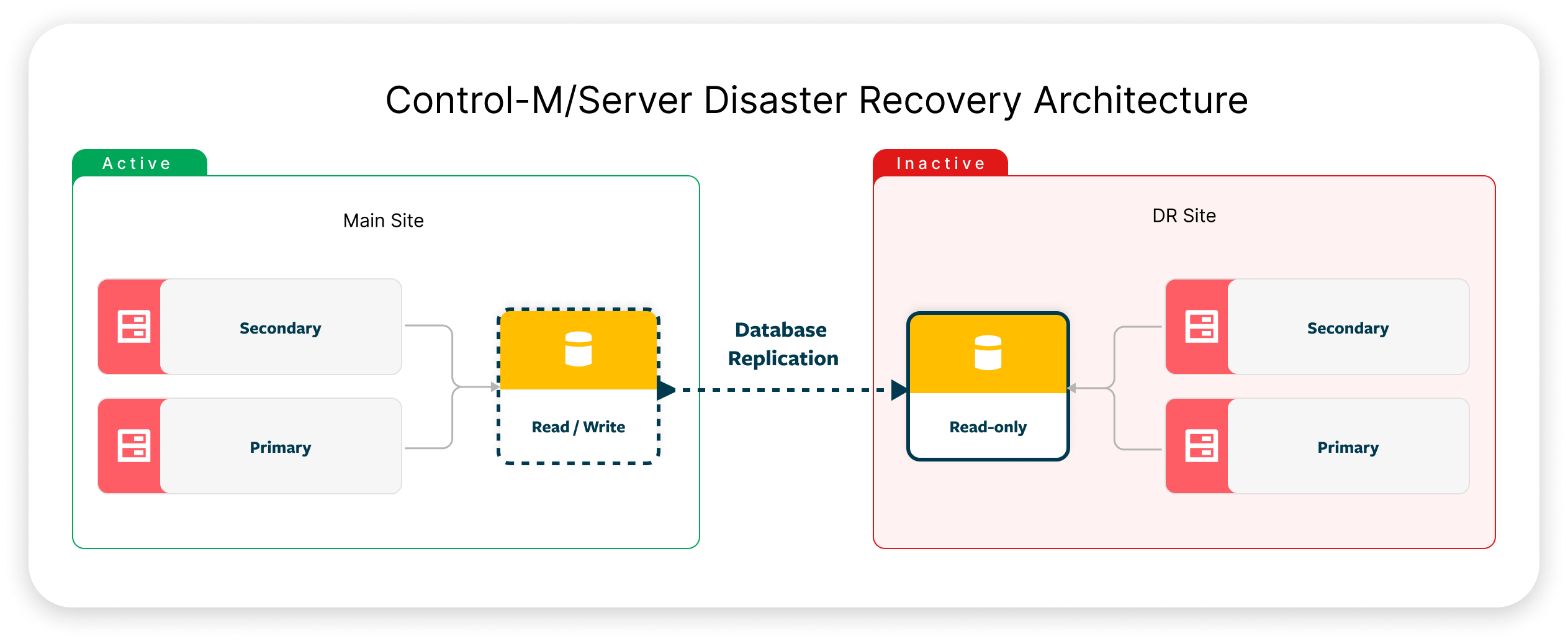
After you move from the main site to the DR site, you do not need to change the job definitions as long as the Agents that were available on the main site are available on the DR site. The Control-M/Server on the DR site runs on a different hostname and you need to update its definition in Control-M/EM, as described in Moving Control-M/Server to the DR Site. Control-M/Server is defined with a Name in Control-M/EM. Do not change this parameter.
The following diagram shows the Control-M/Server Disaster Recovery solution:
The following procedures describe how to set up and move Control-M/Server in a DR environment:
Control-M/Server Disaster Recovery Requirements
The following table describes the requirements to set up a DR environment for Control-M/Server.
|
Requirement |
Description |
|---|---|
| Installation |
The same installation type must be present on the main site and the DR site. If the production is Control-M/Server, the DR site must be Control-M/Server. |
|
Upgrade |
If you upgraded Control-M/Server on the main site, you must upgrade Control-M/Server on the DR site, as described in Upgrading Control-M in a Disaster Recovery Configuration. |
|
Control-M Version |
The same Control-M/Server version must be installed on the main site and DR site. |
|
Operating System |
The main site and DR site must use the same operating system and version. |
|
Account |
The account names and home directory of the installation on the main site must be the same on the DR site. |
|
Ports |
The same firewall rules that exist on the main site must be configured on the DR site. |
|
Database Replication |
|
Setting Up a Control-M/Server Disaster Recovery
This procedure describes how to set up a Control-M/Server Disaster Recovery environment.
Begin
-
Install Control-M/Server on the DR host with an additional database, as described in Control-M/Server Installation.
The replication database is read-only. Therefore, you must install Control-M/Server with an additional database, which has the same requirements as the replication database listed in Control-M/Server Disaster Recovery Requirements. You can delete this additional database instance on the DR site after you have installed all required Control-M/Server instances and completed this procedure. Use the same installation parameters as the main site Control-M/Server.
If you are using High Availability on the main site, install the same instances on the DR site that exist on the main site.
-
Navigate to the <Control-M/Server_Home>\ctm_server\scripts\ directory and run the following command to enable all Control-M/Servers on the DR site (High Availability) to work with the replication database:
restore_host_config --reconf_db [--host <New_DB_Hostname>] [--port <New_DB_Port_Number>] [--dbname <New_DB_Schema_Name>] [--service <New_DB_Service_Name>] [--owner <New_DB__Owner_Name>] [[--password <DBO_Password>] [--pg_existing_server <y/n>]
If you are using a PostgreSQL database, you must set the -pg_existing_server to y.
Moving Control-M/Server to the DR Site
This procedure describes how to move Control-M/Server to the DR site.
Begin
-
Verify the database transaction log is complete and synced.
-
Authorize the DR database with Read/Write access.
-
Update the DR host configuration in Control-M/Server on the DR host by navigating to the <Control-M/Server_Home>\ctm_server\scripts\ directory and running the following command in both the primary environment and the secondary environment:
-
If you are not working in a High Availability environment, run the following command:
restore_host_config --dr
-
If you are working in a High Availability environment, do the following:
-
Run the following command on the primary:
restore_host_config --dr --primary
-
Run the following command on the secondary:
restore_host_config --dr --secondary
-
-
-
Run one of the following commands to log in to the Control-M/EM account and update the Control-M/Server hostname:
-
UNIX: em em-reconfigure-ctm-host [--old_host <Old_Hostname>] [--new_host <New_Hostname>] [--password <DBO_Password>] [--silent]
-
Windows: em-reconfigure-ctm-host [--old_host <Old_Hostname>] [--new_host <New_Hostname>] [--password <DBO_Password>] [--silent]
-
-
Start all Control-M/Server processes on the DR site, as follows:
-
start_ctm
-
start_ca
-
Moving Control-M/Server to the Main Site
This procedure describes how to move Control-M/Server to the Main site.
Begin
-
Verify the database transaction log is complete and synced.
-
Authorize the Main site database with Read/Write access.
-
Update the Main site host configuration in Control-M/Server on the Main host by navigating to the <Control-M/Server_Home>\ctm_server\scripts\ directory and doing one of the following:
-
If you are not working in a High Availability environment, run the following command:
restore_host_config --dr
-
If you are working in a High Availability environment, do the following:
-
Run the following command on the primary:
restore_host_config --dr --primary
-
Run the following command on the secondary:
restore_host_config --dr --secondary
-
-
-
Run one of the following commands to log in to the Control-M/EM account and update the Control-M/Server hostname:
-
UNIX: em em-reconfigure-ctm-host [--old_host <Old_Hostname>] [--new_host <New_Hostname>] [--password <DBO_Password>] [--silent]
-
Windows: em-reconfigure-ctm-host [--old_host <Old_Hostname>] [--new_host <New_Hostname>] [--password <DBO_Password>] [--silent]
-
-
Start all Control-M/Server processes on the Main site, as follows:
-
start_ctm
-
start_ca
-
Upgrading Control-M in a Disaster Recovery Configuration
This procedure describes how to upgrade Control-M/EM and Control-M/Server in a DR configuration on UNIX and Windows. In a DR environment, the database on the DR site is set to read-only, which enables replication from the main site. This procedure allows you to upgrade without changing the read-only status of the database and without interrupting the database replication.
If you upgrade on the main site, you must upgrade on the DR site.
The database in the DR environment must have read access.
Before You Begin
-
If Workflow Insights or Workload Archiving is installed, verify that all components of these add-ons are shut down.
Begin
-
Set the inst_skip_db_changes environment variable to Y where the upgrade is executed.
-
Do one of the following:
-
To upgrade Control-M/EM, see Control-M/EM Upgrade.
-
To upgrade Control-M/Server, see Control-M/Server Upgrade.
-
-
Set the inst_skip_db_changes environment variable to N.
 YouTube

 Facebook
 LinkedIn
